
Starting a Company
How to Start a Company in Estonia Yourself: Why Pay Someone Else?
Do you need to hire someone to start a company in Estonia? Absolutely NOT. You can do the process yourself. And there's a good reason to take part: you're deciding how your business will work. Many providers offer to handle the incorporation for you. However, after helping to open more than 1,000 companies in Estonia, my recommendation is to understand the options before delegating them: share capital, shareholder rights, articles of association or VAT registration deserve more than clicking «Continue».
That's why I've prepared this step-by-step guide to starting a company in Estonia, with screenshots from my own application and practical advice on what to choose on each screen.
Completing and submitting my application took me about half an hour, with the information prepared in advance. The registration arrived the same day, 5 hours after the registry's review. That's my experience; the timing will depend on your case.
Below I'll show you how I did it, what you need to prepare and which decisions are worth getting help with. If you'd like to review your project with me, you'll find a link at the end to book a free meeting.
Table of contents
- 01Access the register and select «Private limited company»
- 02Identify yourself to start the application
- 03Continue the identification with Smart-ID
- 04Start the incorporation application for your OÜ
- 05Select your company's main activity
- 06Enter your company's name
- 07Choose the name format and save your selection
- 08Set your company's official address and email
- 09Confirm your company's email address
- 10Add the company's management board member
- 11Add the company's founder or shareholder
- 12Complete the management board member's personal address
- 13Add a contact person, if applicable
- 14Review who can represent the company
- 15Define the share capital and each shareholder's contribution
- 16Decide whether you need shares with special rights
- 17Review and complete the company's articles of association
- 18Define the contributions, the reserve and the number of managers
- 19Indicate how the capital is paid and who bears the incorporation costs
- 20Check the articles of association summary
- 21Check whether you need to attach additional documents
- 22Identify the company's beneficial owners
- 23Review the beneficial owner's details and continue
- 24Decide whether to apply for voluntary VAT registration
- 25Check whether you need to register employees
- 26Decide whether you want to reserve a «.ee» domain
- 27Review the application before signing it
- 28Review the generated documents and start the signature
- 29Check that the digital signature has been completed
- 30Make the share capital contribution
- 31Pay the incorporation fee with your bank or card
- 32Check that the application has been sent to the register
- 33Leave the e-Financials option unticked
- 34Receive your company's registration documents
Step 1
Access the register and select «Private limited company»
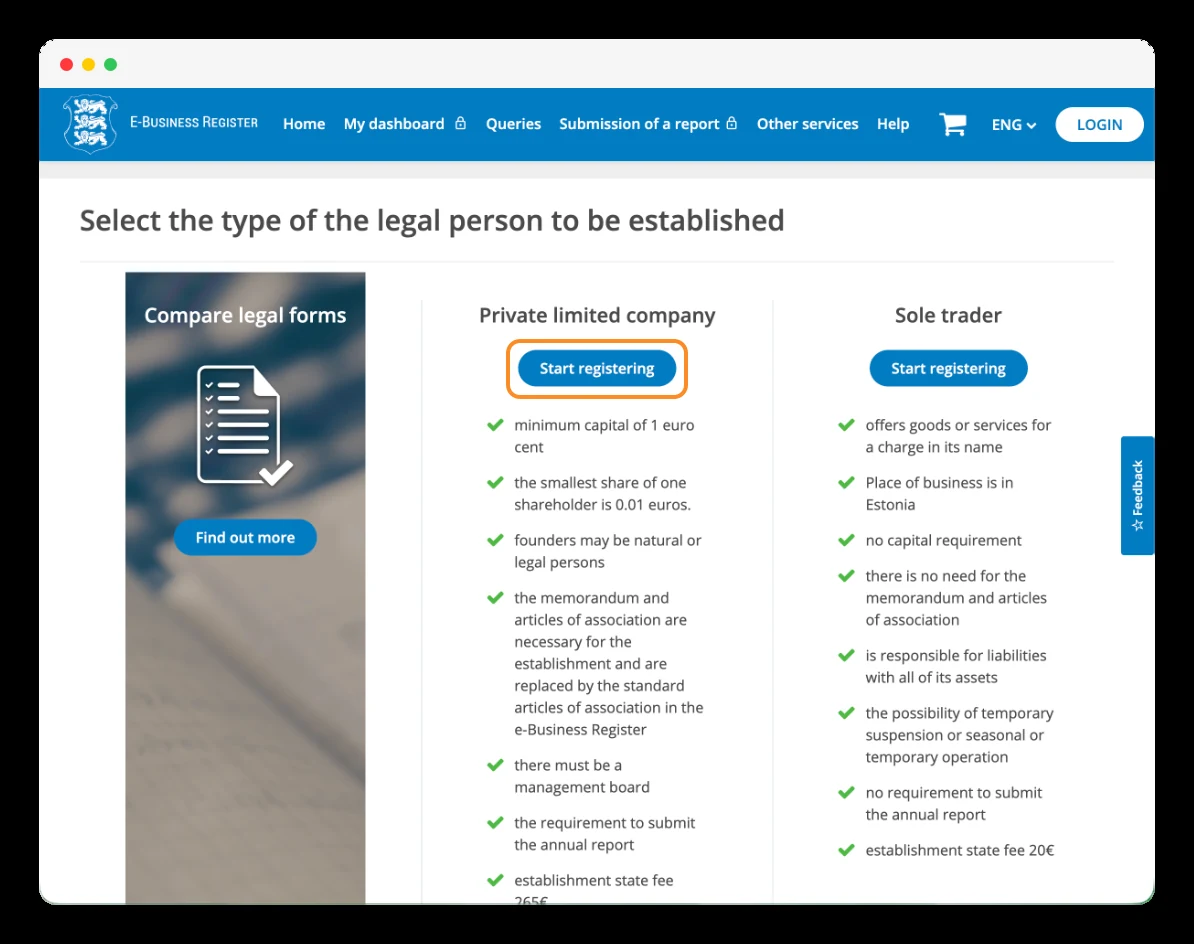
Go to the Estonian e-Business Register, the official portal where you'll start incorporating your company. On the legal-form selection screen, look for «Private limited company» and click «Start registering». This option corresponds to an OÜ —osaühing—, the Estonian private limited company we'll be setting up in this guide.
Practical tip: keep the portal in English to follow the same labels shown in the screenshots. You can select «In English» in the language menu.
Step 2
Identify yourself to start the application
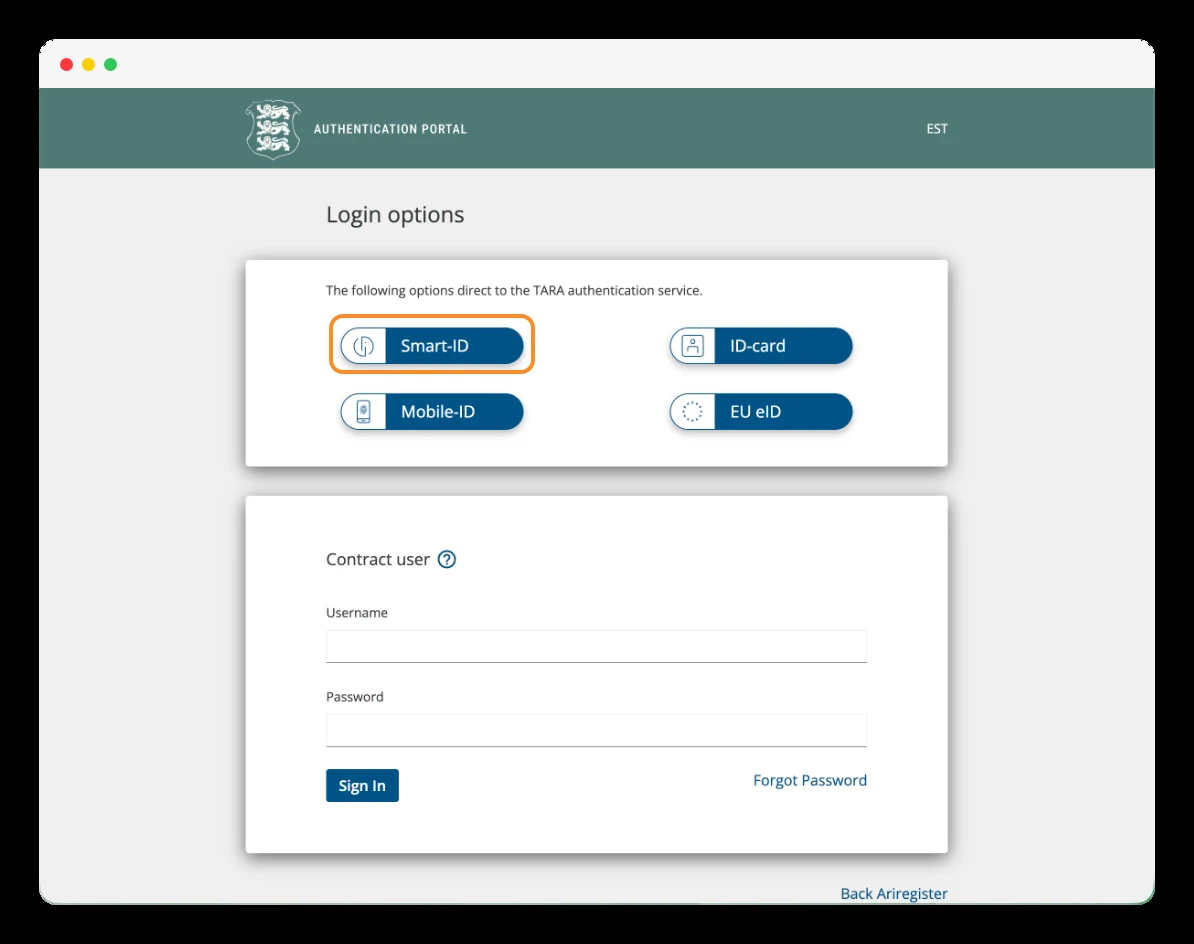
After clicking «Start registering», the portal will ask you to identify yourself. You'll see several options: Smart-ID, ID-card and Mobile-ID.
If you use your e-Residency card, select «ID-card», connect it to your computer with the reader and follow the instructions. When prompted, enter your PIN1 to identify yourself.
You can also log in with Smart-ID, if you already have an Estonian account set up. In the screenshots in this tutorial, the walkthrough continues with that option.
Practical tip: don't mix up the codes: PIN1 is for identifying yourself and PIN2 for signing documents.
In this step you're accessing the register; signing the application comes later.
Step 3
Continue the identification with Smart-ID
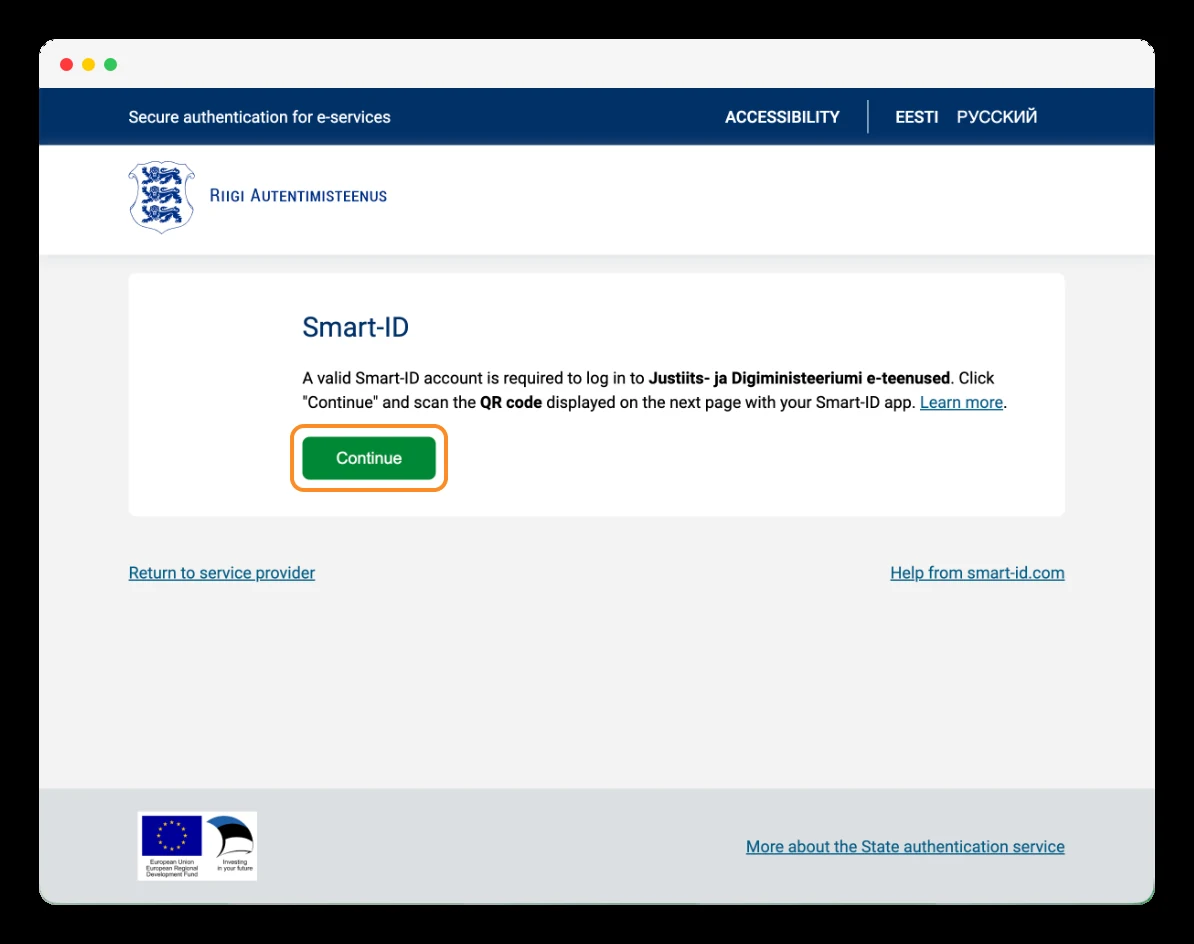
After selecting «Smart-ID», you'll arrive at the Estonian state authentication service. It's normal for the design to change: you're on the identification screen before accessing the register.
Click the green «Continue» button. On the next screen a QR code will appear that you'll need to scan with the Smart-ID app on your phone.
Step 4
Start the incorporation application for your OÜ
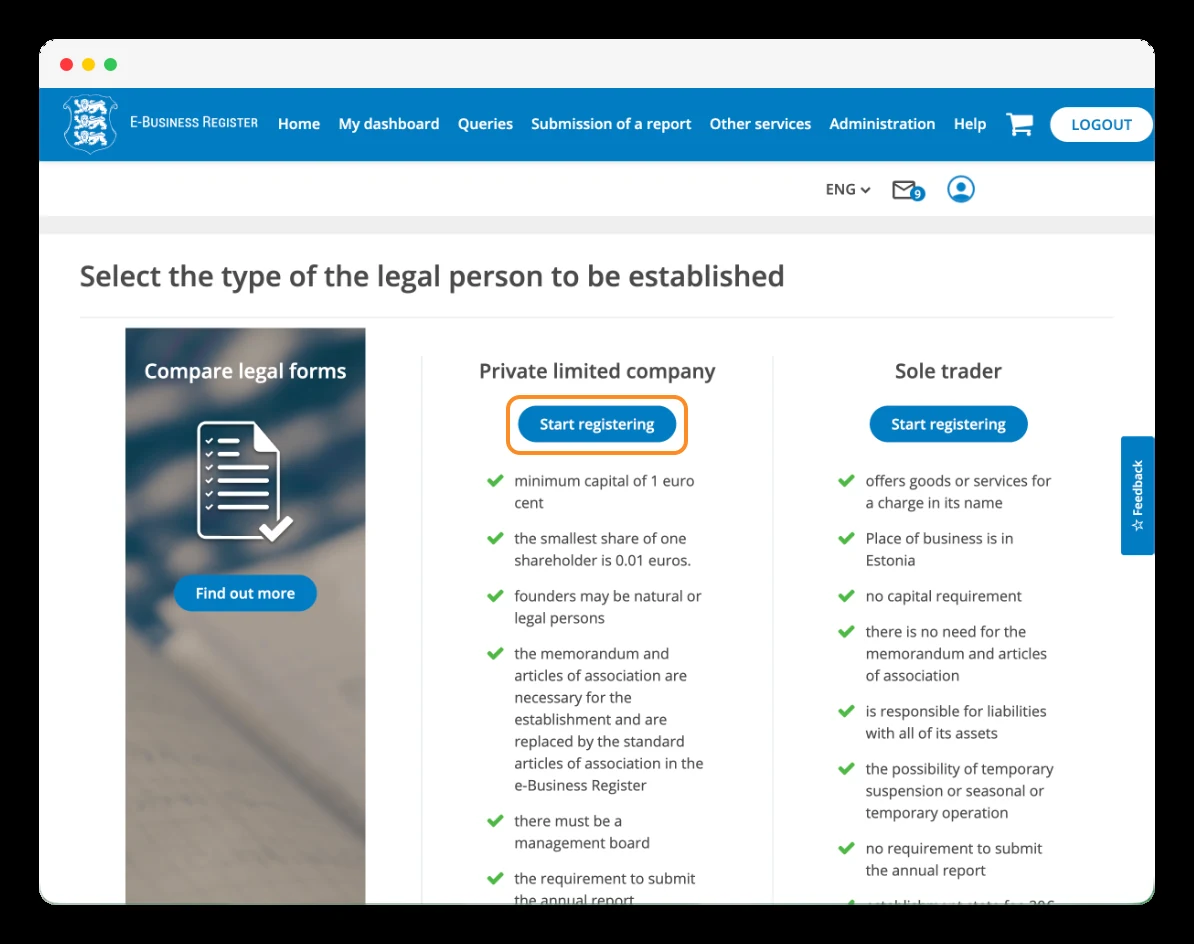
Once the Smart-ID identification is complete, you'll return to the e-Business Register. In my case, the portal showed the legal-form selection screen again, this time with the session logged in.
In the «Private limited company» column, click «Start registering» to begin the incorporation application for your OÜ.
Step 5
Select your company's main activity
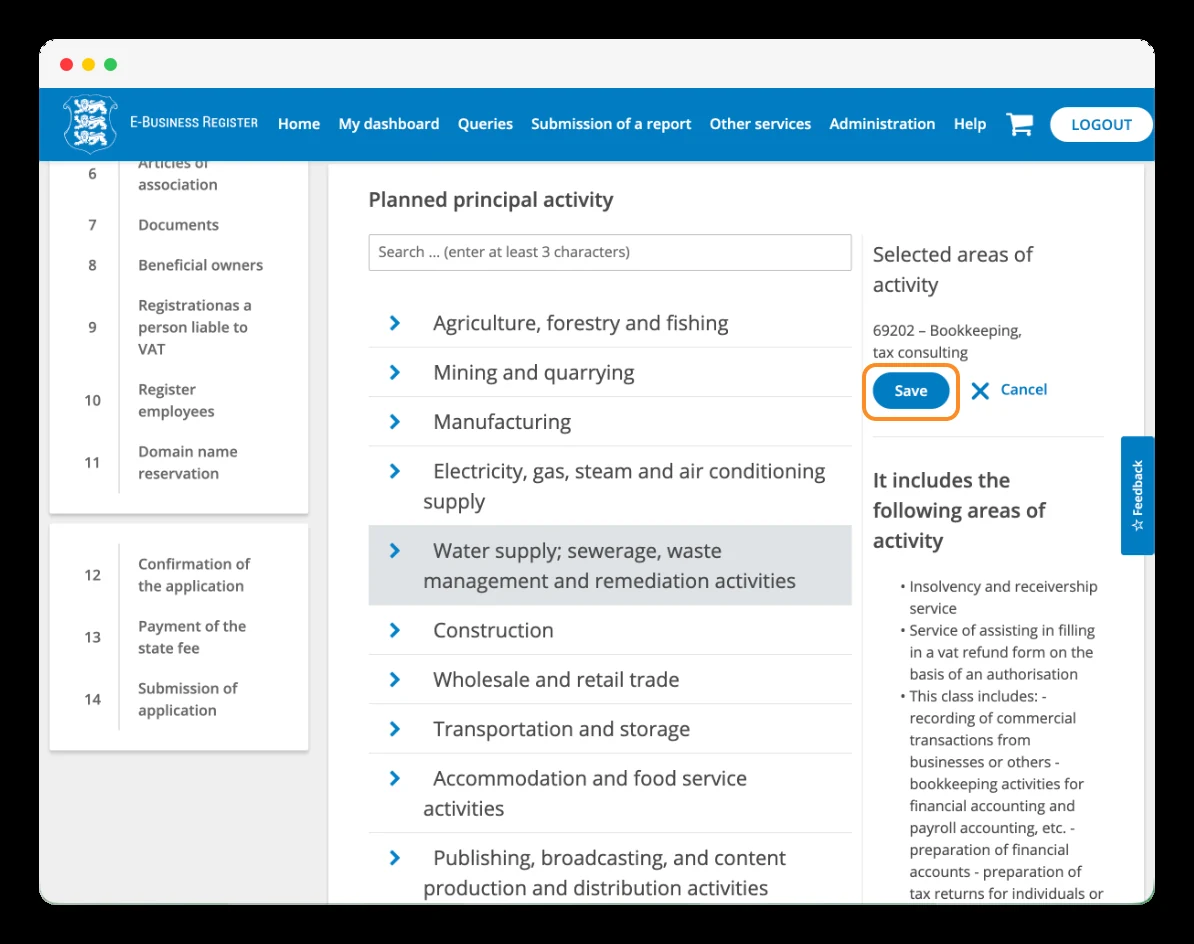
In the «Activity» section, you'll need to indicate the main activity you plan to carry out. The register uses the EMTAK classification, the Estonian system of economic activity codes. Click «Add» to open the selector. You can search by name or code —entering at least three characters— or browse the categories in the list.
Select the activity that matches your business, review its description and click «Save» to store it.
In my case, I chose «69202 - Bookkeeping, tax consulting», corresponding to accounting and tax advisory services.
Step 6
Enter your company's name
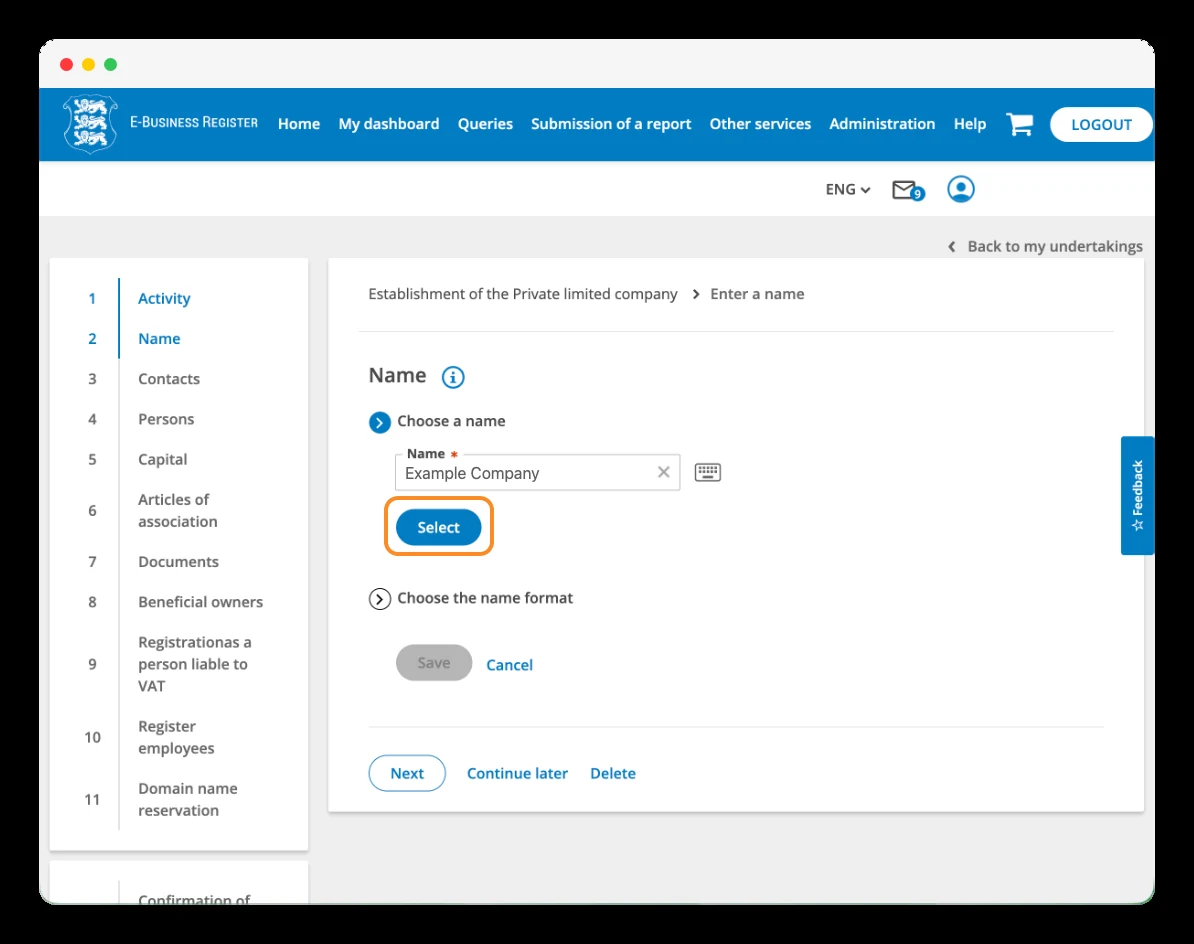
In the Name section, type the name you want to use in the «Choose a name» field and click Select.
The process will then continue with Choose the name format, where you'll define how the name appears together with the legal-form designation.
Step 7
Choose the name format and save your selection
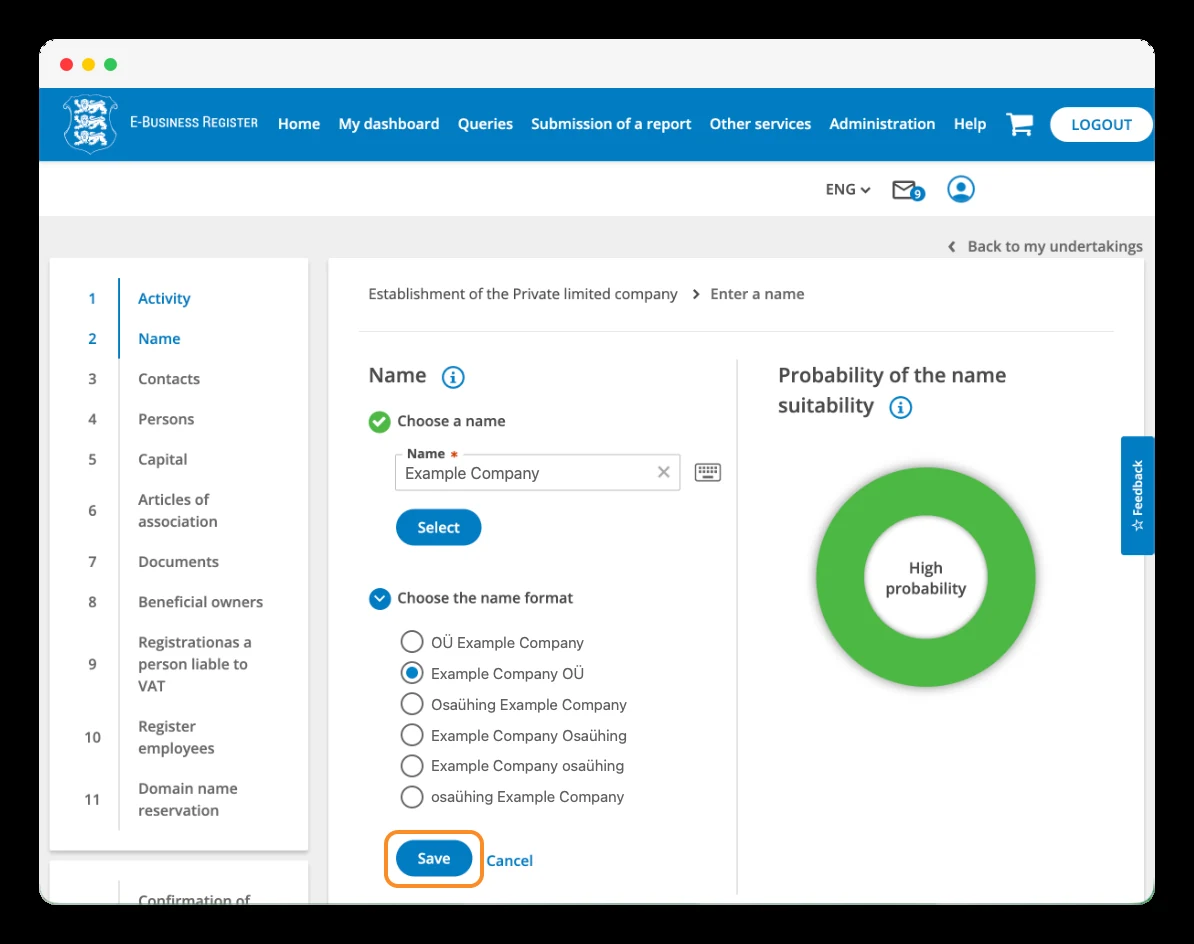
After clicking Select, the Choose the name format section will expand. Here you'll choose how your company's name will appear, including OÜ or the full word Osaühing, at the beginning or at the end.
For example, you can select «Example Company OÜ». Tick the option you prefer and click «Save». Then click «Next» to continue.
On the right you'll see the «Probability of the name suitability» indicator, which gives a rough assessment of the likelihood of the name being accepted.
Step 8
Set your company's official address and email
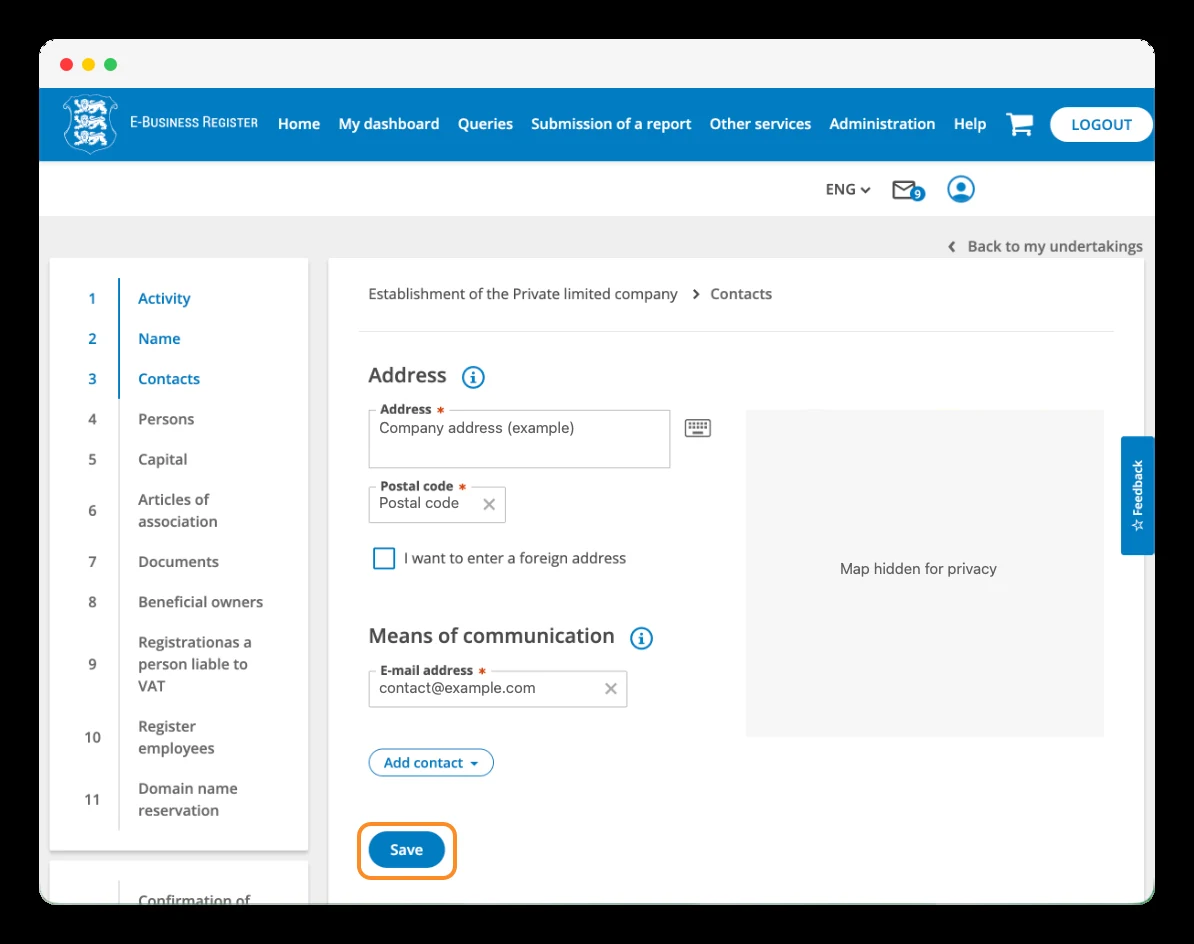
In the «Contacts» section, enter your company's official address and an email address. You can use an address in Estonia or a foreign address, but the requirements are different.
If you use an address in Estonia: you can use a valid address available to your company or hire a legal address service. Enter the address in «Address», select it from the portal's suggestions and check the postal code. In this case, appointing a contact person is not mandatory merely because you live outside Estonia.
If you use an address outside Estonia: tick «I want to enter a foreign address» and enter the corresponding address. In this case you must designate a licensed contact person in Estonia, usually by hiring the service from an authorised provider. You'll add them in the «Persons» section. Their role is to receive official documents and notifications addressed to your company and forward them to you.
So, if you don't have your own address in Estonia, you can choose between hiring an Estonian legal address or using a foreign address and hiring a licensed contact person in Estonia. You don't have to contract both services.
Finally, in «Means of communication», enter an email you control and check regularly. Click «Save» and confirm the email via the link you'll receive.
Step 9
Confirm your company's email address
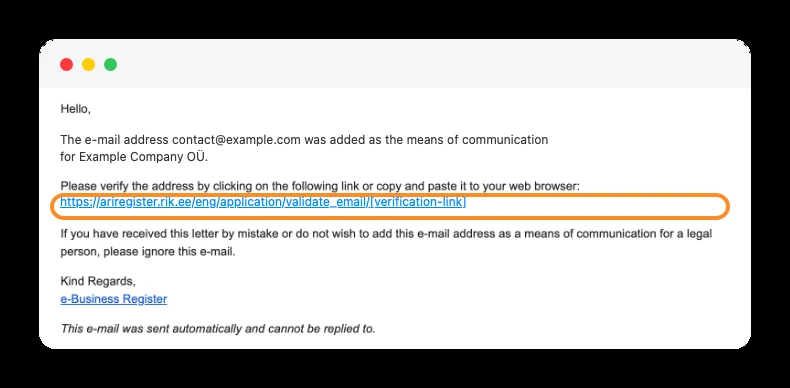
After saving the contact details, open the inbox of the email you provided. You'll receive a message with the subject «E-posti aadressi kinnitamine / Please verify your e-mail address».
Open the message and click the verification link. The email includes the instructions in Estonian and in English.
Once confirmed, return to the application in the e-Business Register and check that the email appears as validated to continue.
Step 10
Add the company's management board member
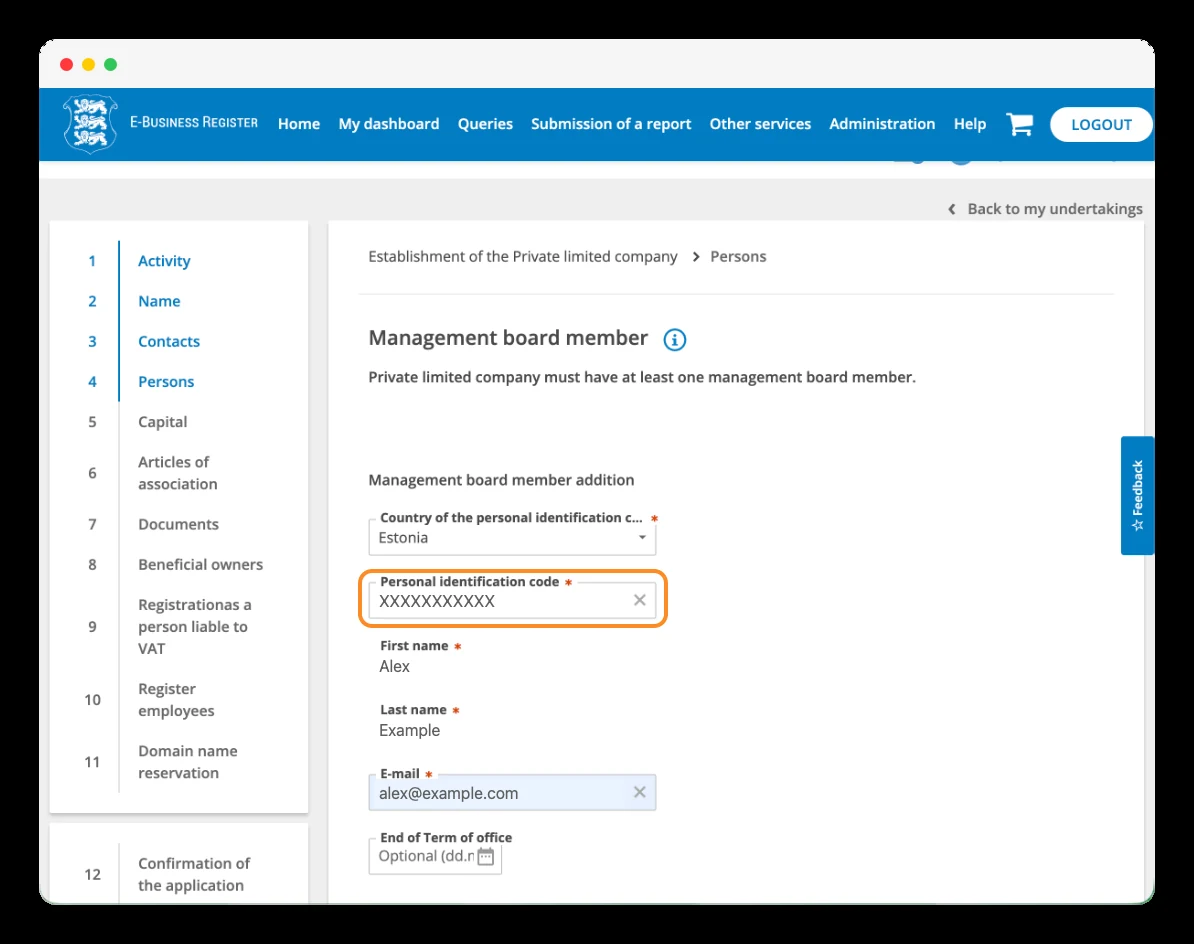
In the «Persons» section, start with «Management board member», where you'll indicate who will manage the company. The company must have at least one.
If you're going to manage the company yourself, enter your details:
- «Country of the personal identification code»: select Estonia if you use your Estonian personal code.
- «Personal identification code»: enter that code and check the first and last name shown by the portal.
- «E-mail»: enter your email address.
- «End of Term of office»: an optional field to indicate the end date of the appointment, if applicable.
Step 11
Add the company's founder or shareholder
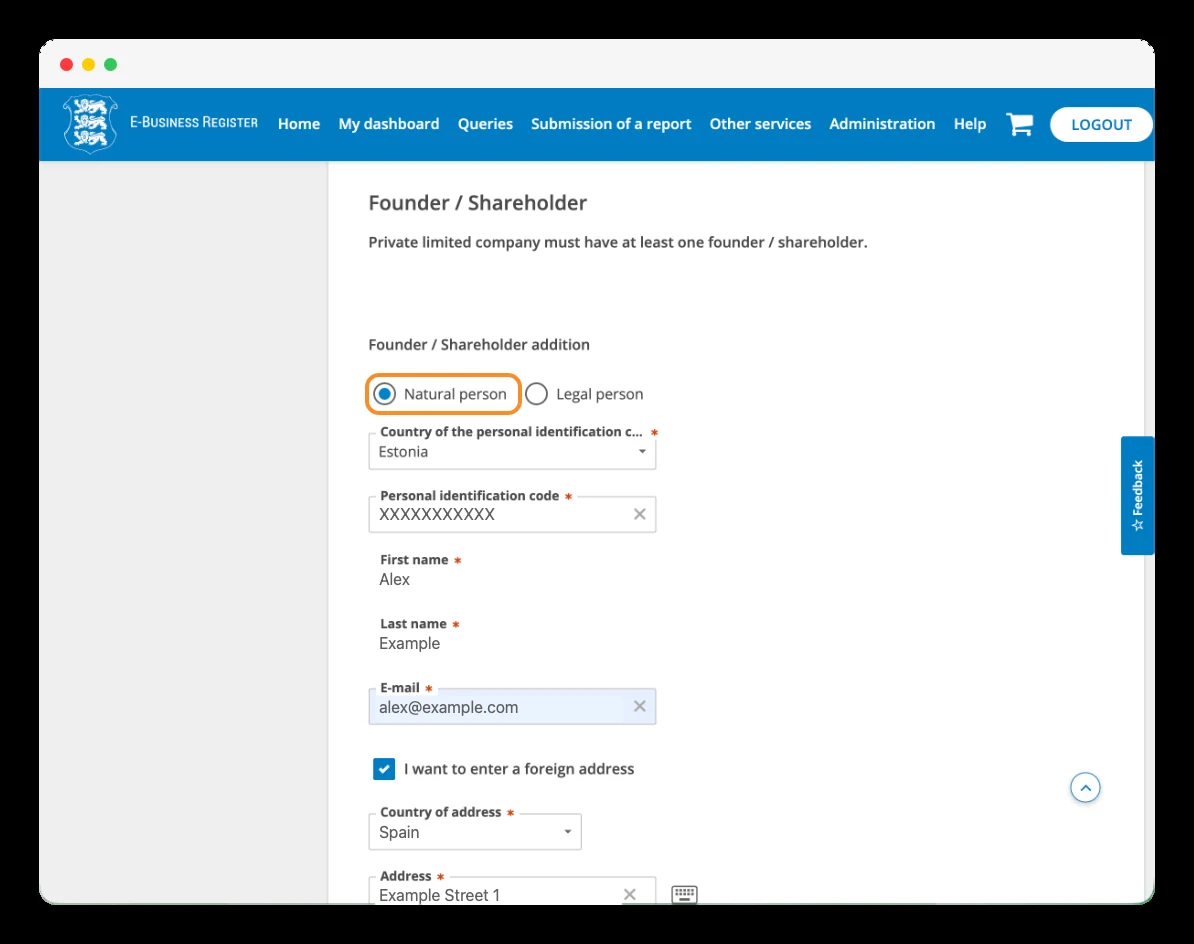
Within «Persons», continue to «Founder / Shareholder». Here you'll identify who incorporates the company as a shareholder.
Select «Natural person» if you're participating as an individual, as in this tutorial. If the founder is another company, the corresponding option is «Legal person».
If you use your e-resident identification:
- Select «Estonia» as the issuing country of the personal code.
- Enter your «Personal identification code» and check the first and last name.
- Complete the email address.
- If your personal address is outside Estonia, tick «I want to enter a foreign address» and indicate the corresponding country and address.
Step 12
Complete the management board member's personal address
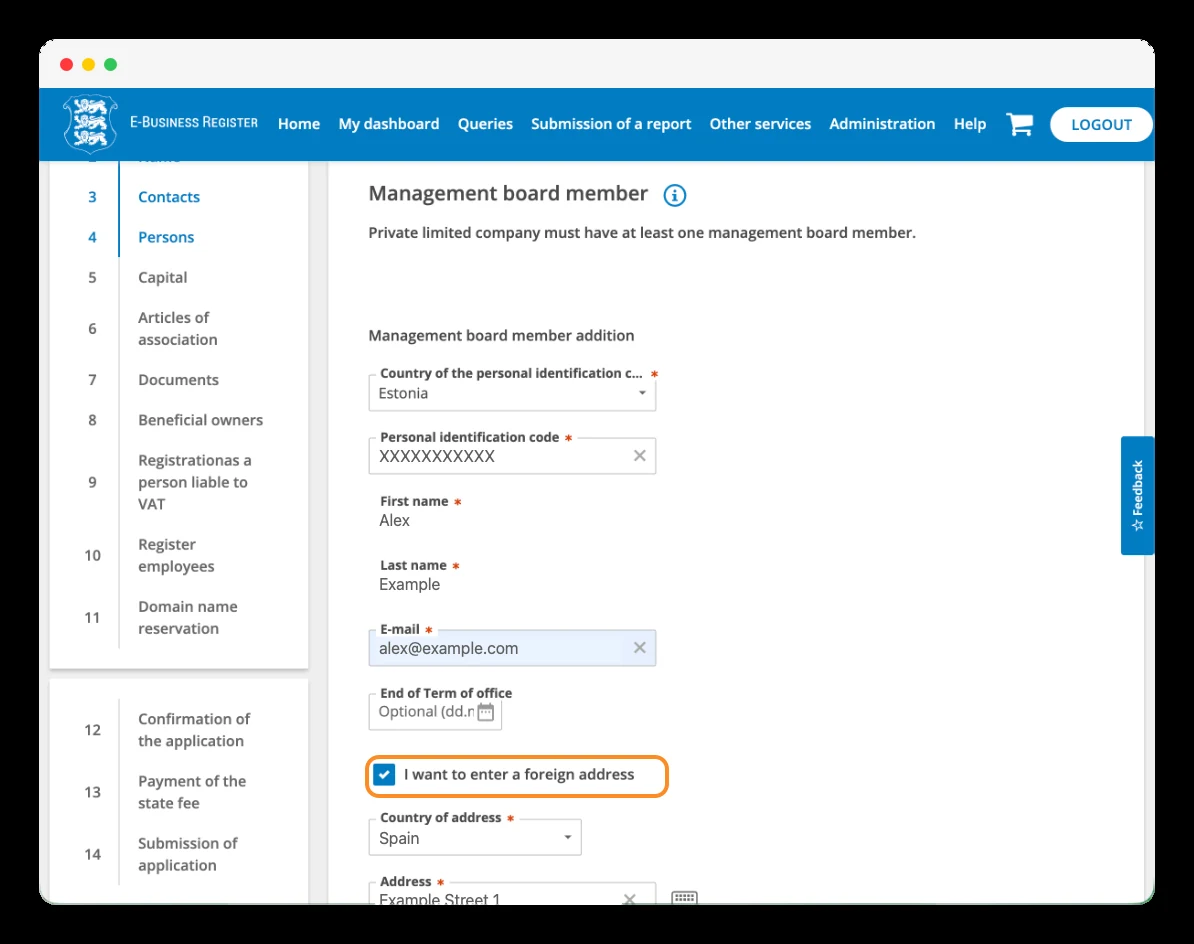
Before finishing the «Persons» section, check that you've also completed the manager's address in «Management board member».
If your address is outside Estonia, tick «I want to enter a foreign address». Then select the country in «Country of address» and enter your address in «Address», completing any other requested fields.
Step 13
Add a contact person, if applicable
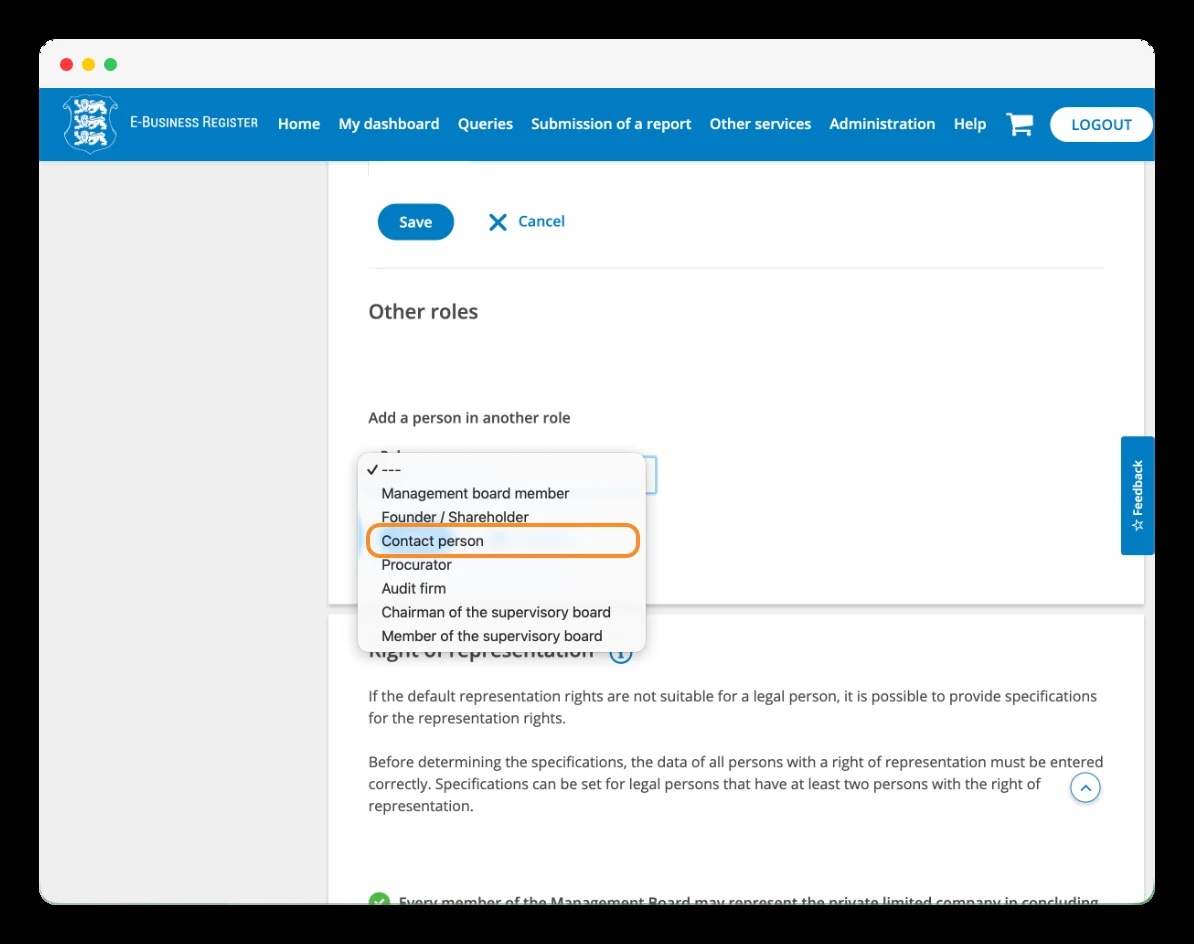
Within «Persons», you'll find the «Other roles» section. To add a contact person, open the «Add a person in another role» dropdown and select «Contact person».
This step depends on the company's official address you chose in step 8:
- Company address outside Estonia: you must designate a licensed contact person in Estonia.
- Company address in Estonia: you don't need to add one obligatorily merely because you live in another country.
If you're going to appoint one, select «Contact person» and continue with the details of the contracted professional or provider.
Step 14
Review who can represent the company
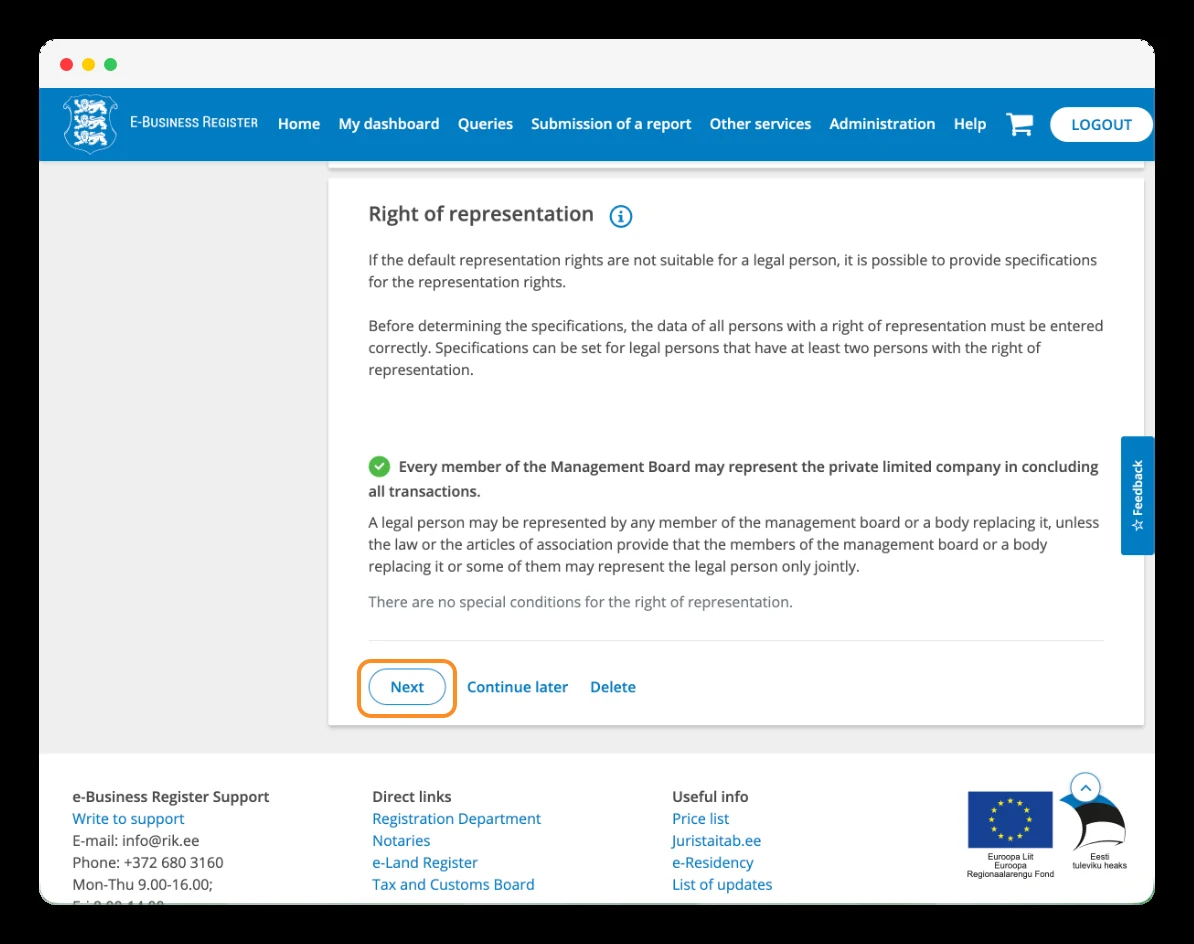
At the end of the «Persons» section you'll find «Right of representation». This is where you indicate how the managers can act on behalf of the company.
The screenshot shows the configuration without special conditions: each manager may represent the company individually.
If you're the only manager and this configuration fits your case, review the information and click «Next».
If there are several managers, check before continuing whether you want each of them to act separately or whether you need to establish joint representation.
Step 15
Define the share capital and each shareholder's contribution
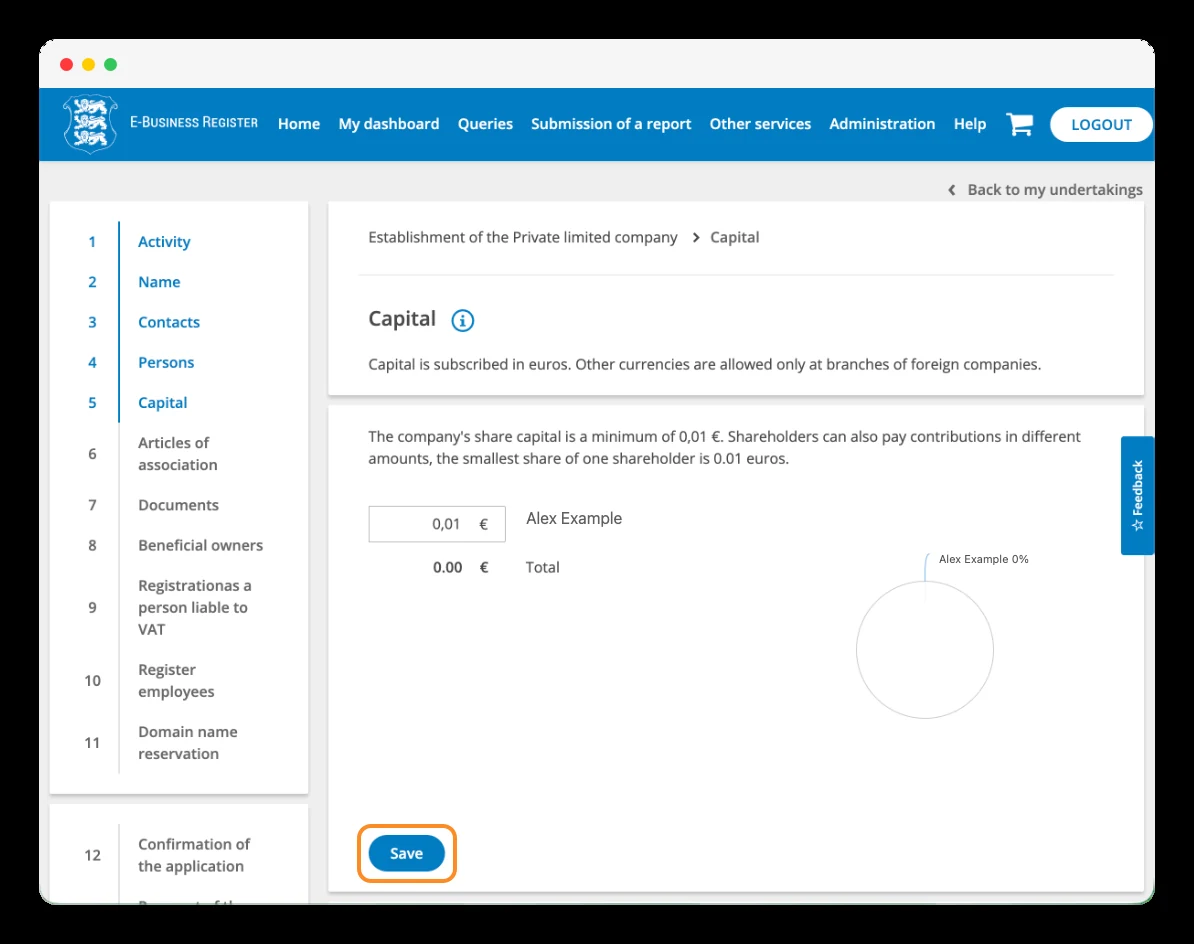
In the «Capital» section, indicate in euros the amount of each shareholder's contribution.
The minimum is 0.01 € per shareholder. If you're incorporating the company on your own, you can set a share capital starting from that amount. If there are several shareholders, enter the contribution corresponding to each one.
Click «Save» and check that the total and the distribution of the shares reflect what you've agreed.
Saving the amount in this form is not the same as paying it. The contributions must be paid up before submitting the registration application; the confirmation of payment comes later in the process.
Step 16
Decide whether you need shares with special rights
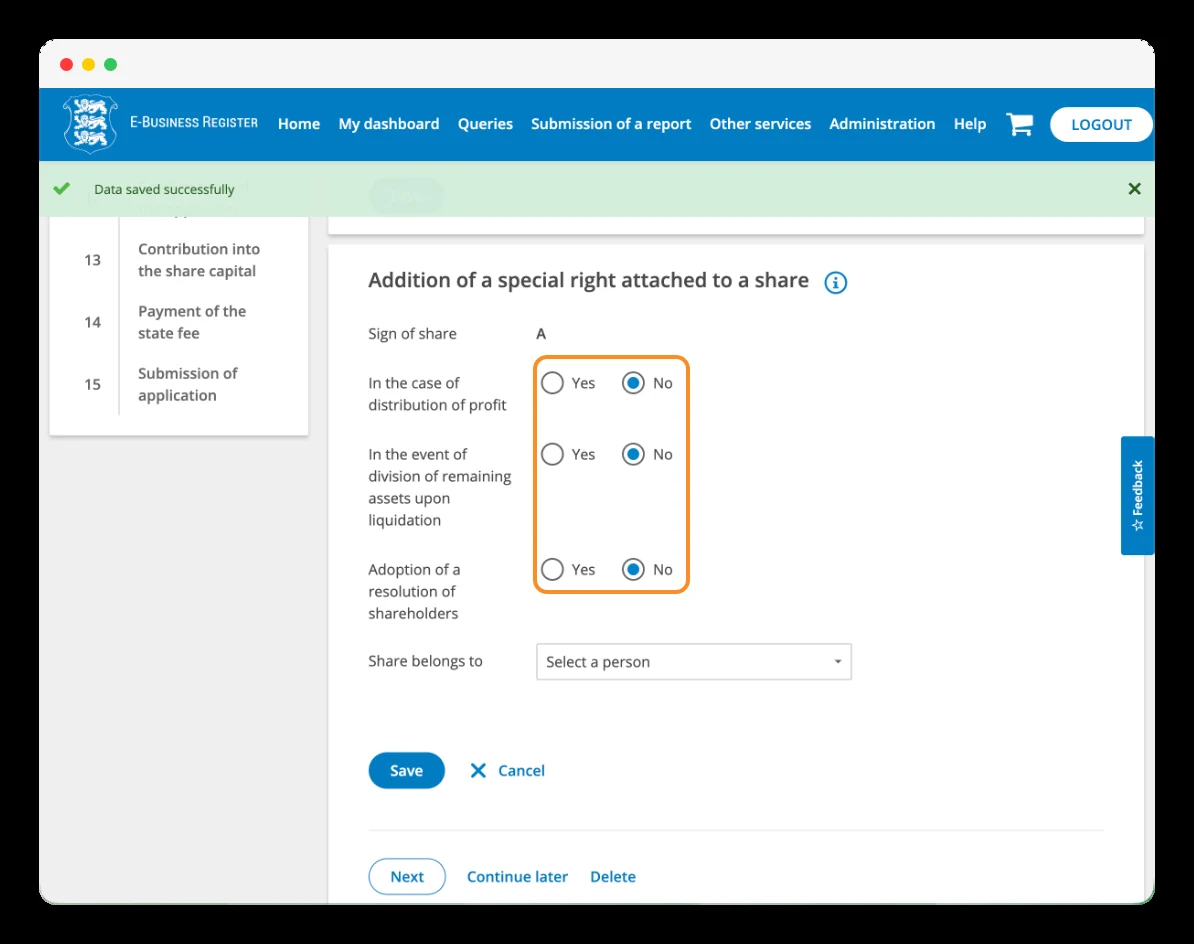
After defining the share capital, you can configure special rights for certain shares or shareholders. The screen shows three areas:
- Profit distribution: special rights when distributing the company's profits.
- Liquidation: rights over the distribution of the remaining assets when the company is wound up.
- Shareholder decisions: special rights related to the adoption of resolutions.
Adding special rights is not mandatory. If you don't need them, you can keep the default configuration and continue.
The screenshot shows the form that opens when adding one of these rights. If you opened it by mistake and don't want to configure any, click «Cancel» and then «Next».
Step 17
Review and complete the company's articles of association
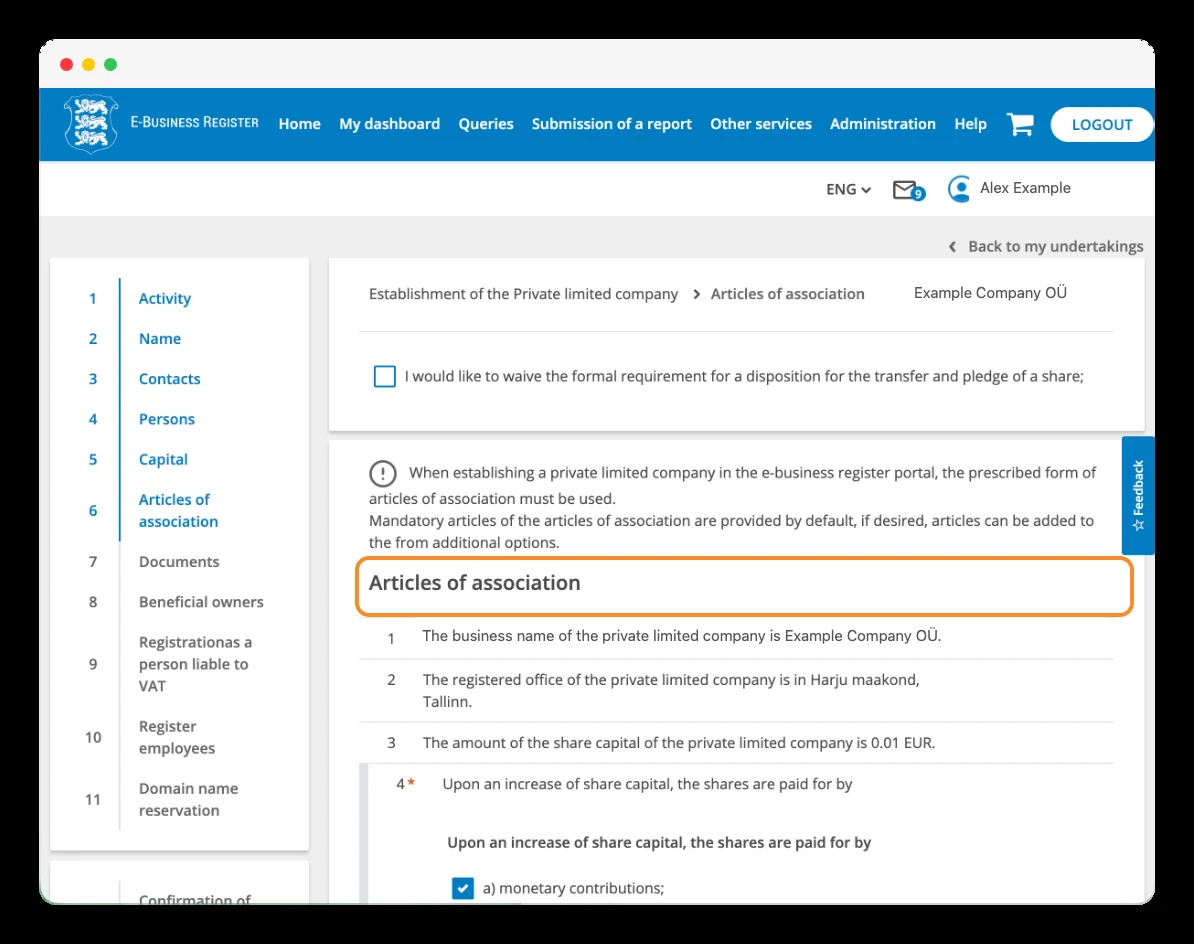
We now enter «Articles of association», the section for the articles: the rules that govern how the company operates.
The portal incorporates data you've already entered, such as the name, the registered office and the share capital. Review them before completing the remaining clauses.
The mandatory sections are marked with an asterisk. You must complete and save each one separately; you can also review other clauses via «Edit».
The screenshot shows a clause about how shares will be paid for in a future capital increase. The «monetary contributions» option means contributions in cash. This section regulates future increases; it's not the confirmation of payment of the initial capital.
Step 18
Define the contributions, the reserve and the number of managers
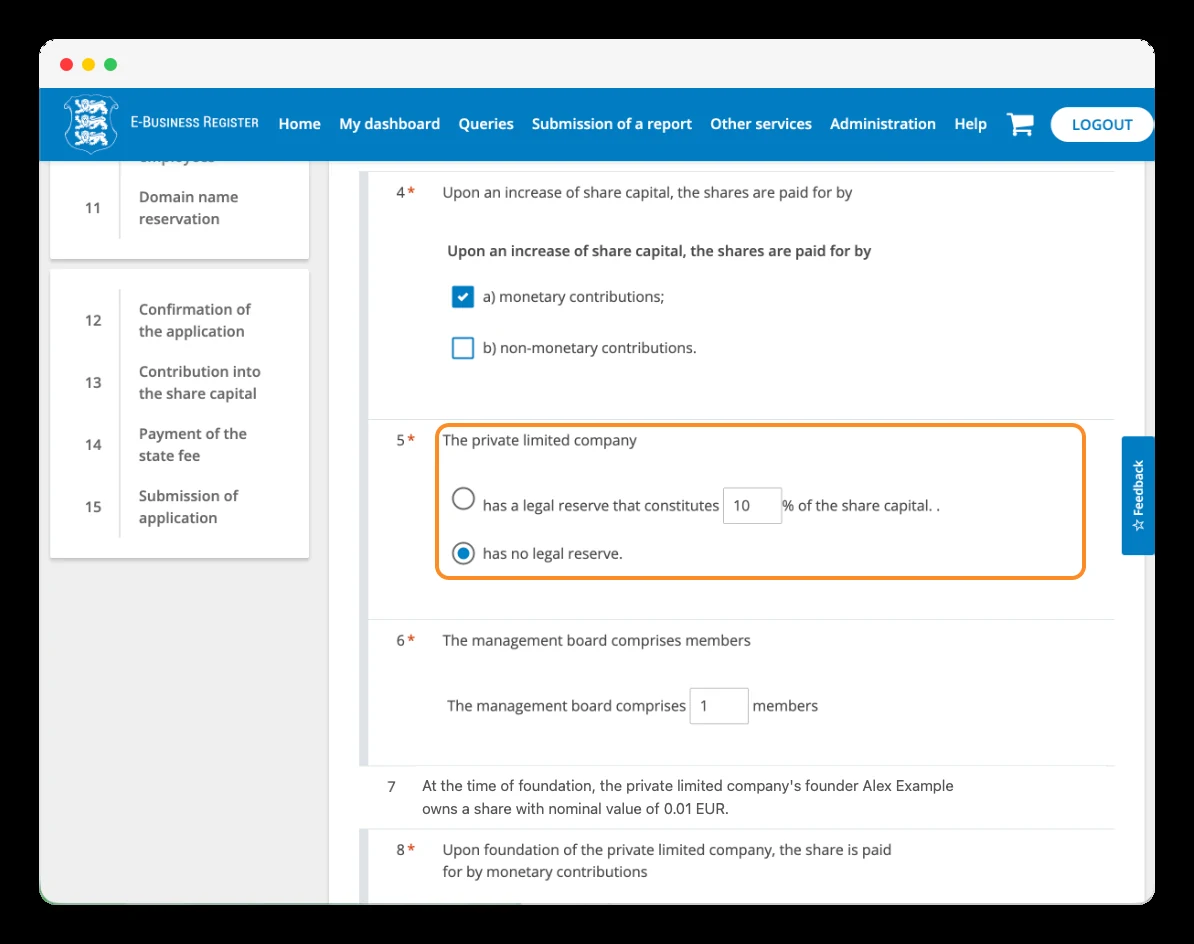
We're still in the articles of association. On this screen you need to review three decisions:
- Contributions in future capital increases: «monetary contributions» allows cash contributions; «non-monetary contributions» covers contributions of goods or other assets. Select what corresponds to your company.
- Statutory reserve: you can provide for a reserve or select «has no legal reserve» to not establish one. The screenshot shows this second option selected.
- Number of managers: indicate how many members the management board will have. If you'll be the only manager, enter 1.
Below, the founder's information and their share also appear. Check that it matches what you indicated earlier.
Step 19
Indicate how the capital is paid and who bears the incorporation costs
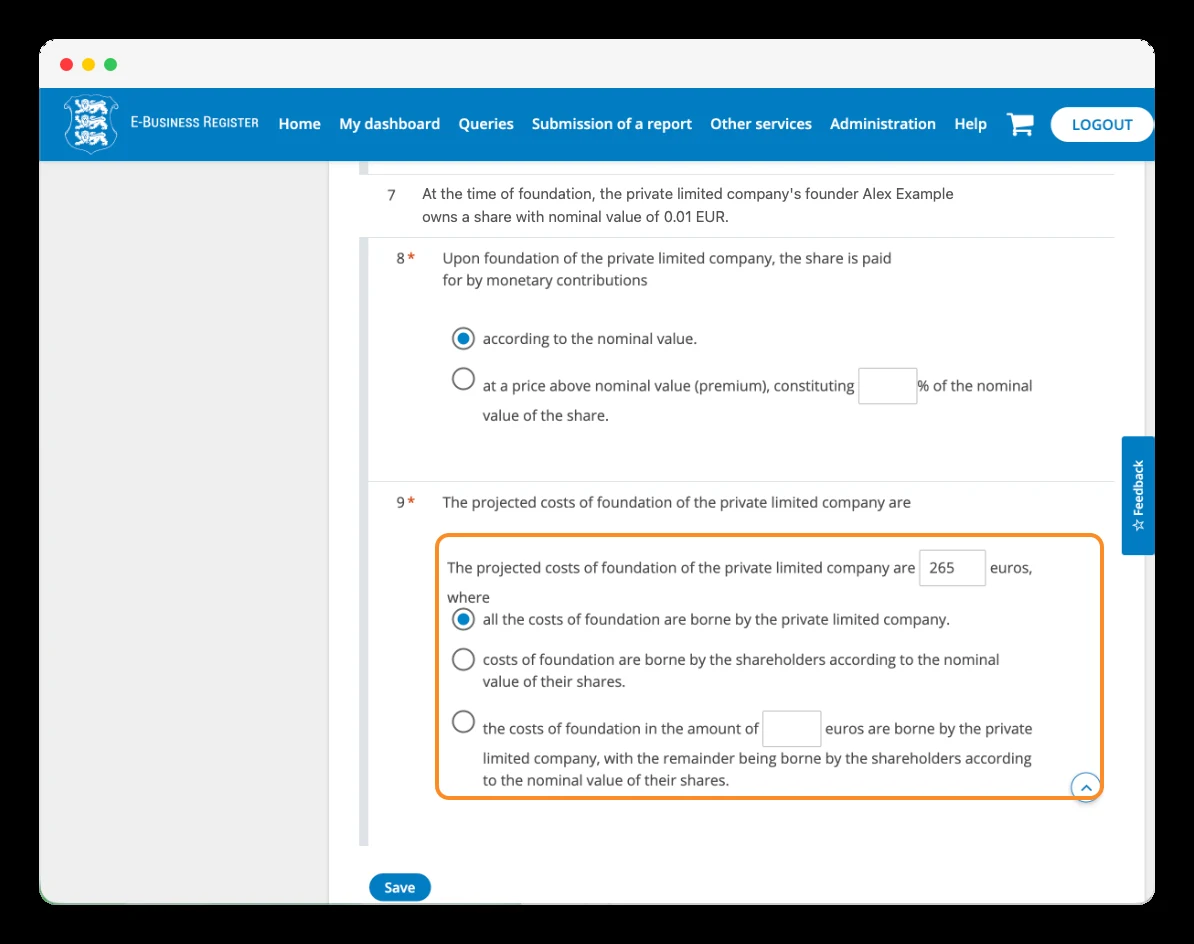
We finish this part of the articles with two decisions.
First, choose whether the shares are paid at their nominal value —«according to the nominal value»— or with an additional contribution, called a premium. For a simple incorporation without a premium, the first option applies, as shown in the screenshot.
Then enter the projected incorporation costs and indicate who will bear them. The form lets you choose between:
- The company bears all the costs.
- The shareholders bear them in proportion to the nominal value of their shares.
- The company bears a specific amount and the shareholders the rest.
In this example, 265 € is indicated and the option that the company bears all the incorporation costs is selected. Adjust the amount if you expect other expenses directly related to the incorporation.
Click «Save» to store the configuration. This button saves the clause; the payment is made later.
Step 20
Check the articles of association summary
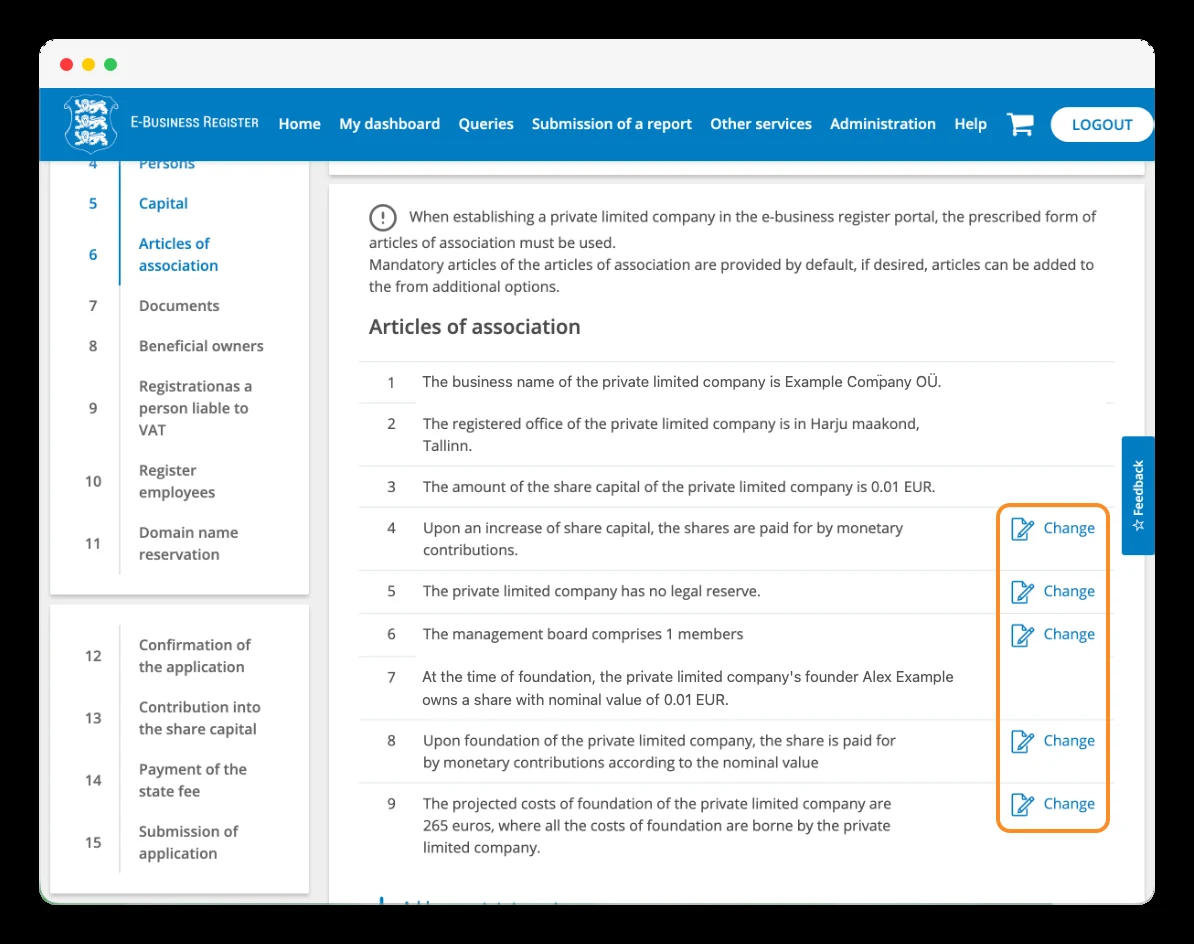
After saving the previous options, the portal shows the clauses with the decisions you've chosen.
Before continuing, check that everything matches what you want to establish:
- The company's name and registered office.
- The share capital and each founder's share.
- The contributions allowed in future capital increases.
- The existence or absence of a reserve.
- The number of managers.
- The projected amount of the incorporation costs and who bears them.
If you need to correct any of the editable clauses, click «Change», modify the option and save again. When you've finished the review, continue to the next section.
Step 21
Check whether you need to attach additional documents
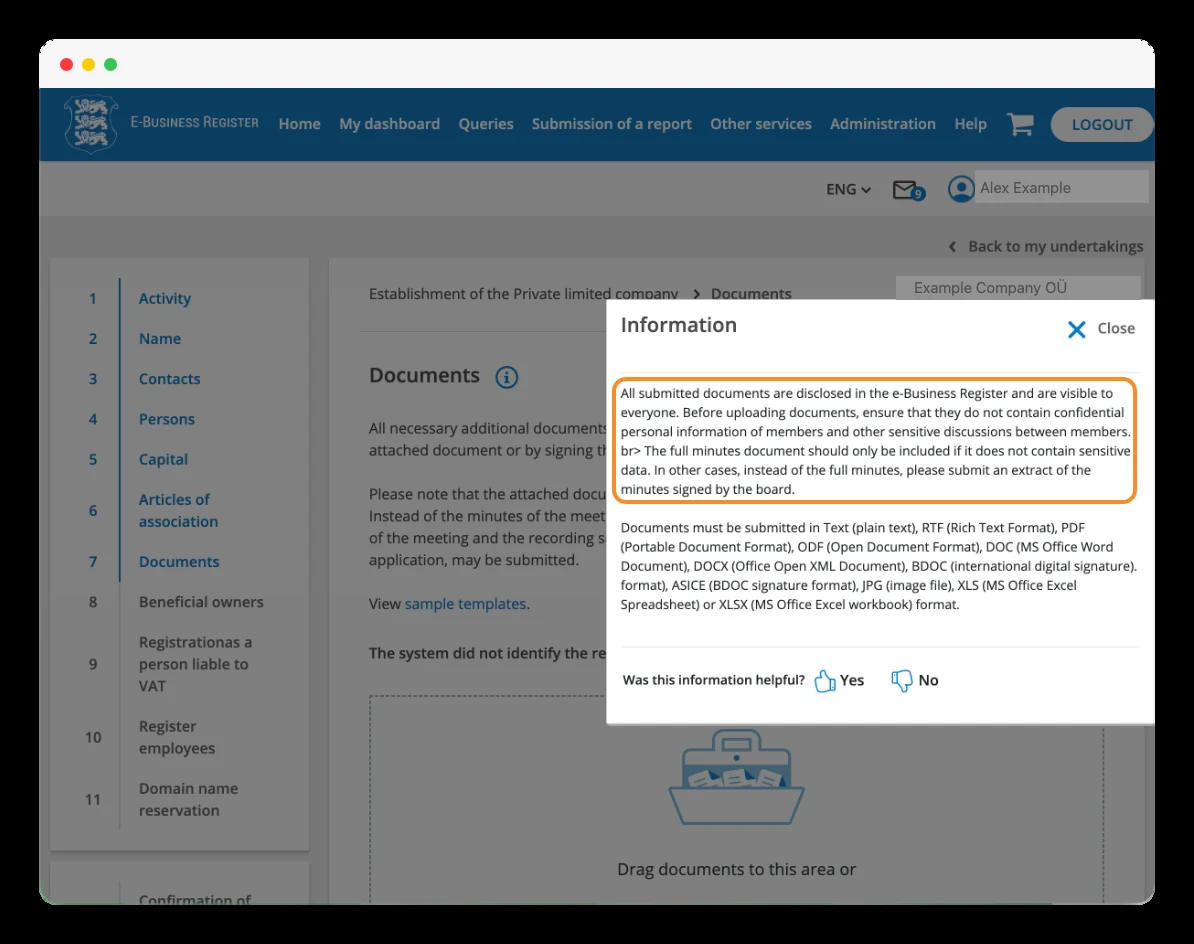
We arrive at the «Documents» section, where you can add additional documentation to the application. In an ordinary incorporation through the portal, it's generally not necessary to attach additional documents. If the system doesn't ask you for any and your case doesn't require specific documentation, you can continue without uploading files.
If you must provide a document, check the accepted formats and the signing requirements indicated by the portal.
The information window in the screenshot contains an important warning: submitted documents are published in the register and can be consulted by other people.
Step 22
Identify the company's beneficial owners
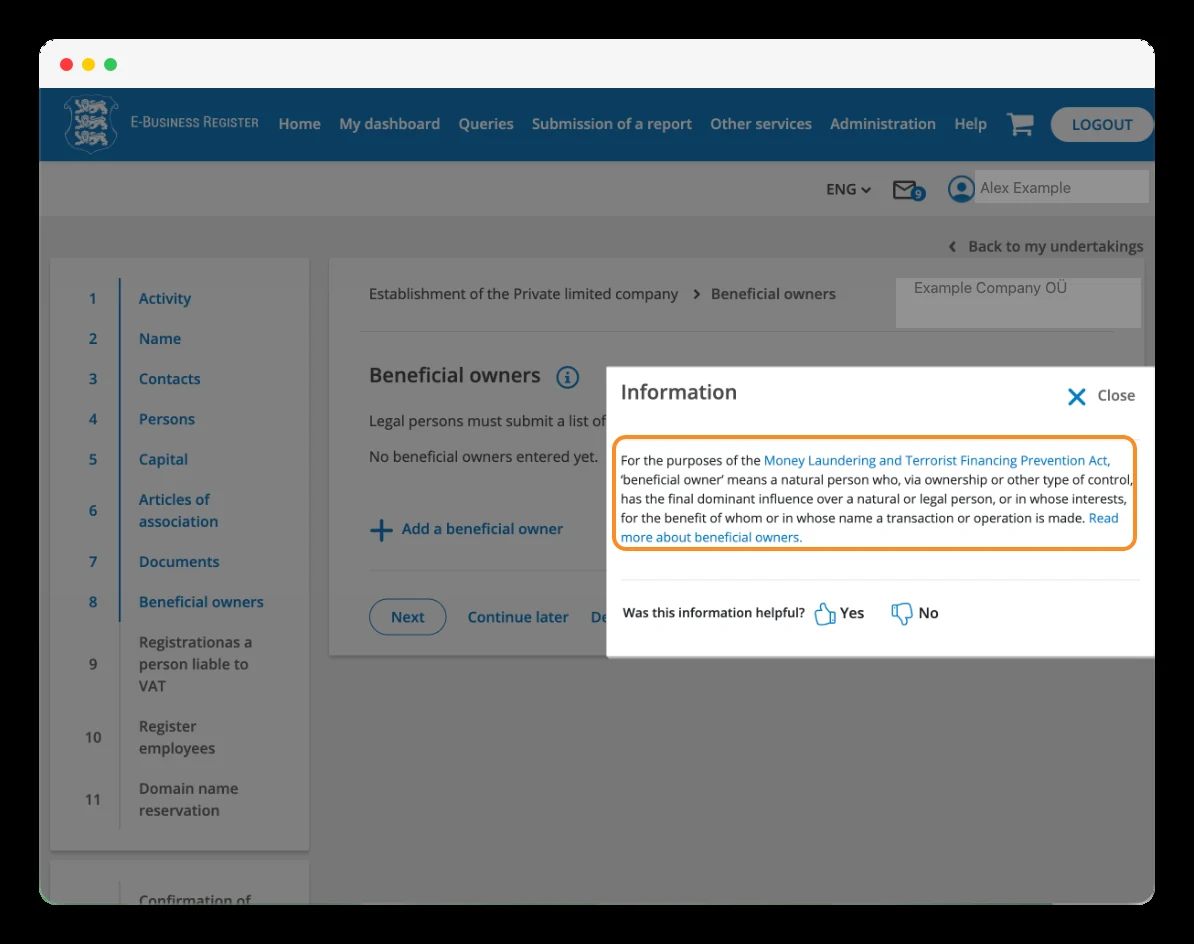
The «Beneficial owners» section is used to declare the natural persons who ultimately own or control the company.
If you're the only shareholder, hold 100% of the shares and control the company directly, you normally must declare yourself as the beneficial owner.
Close the information window in the screenshot and click «Add a beneficial owner». Complete the requested details and indicate how that person exercises ownership or control.
If there are several beneficial owners, add each one before continuing.
Step 23
Review the beneficial owner's details and continue
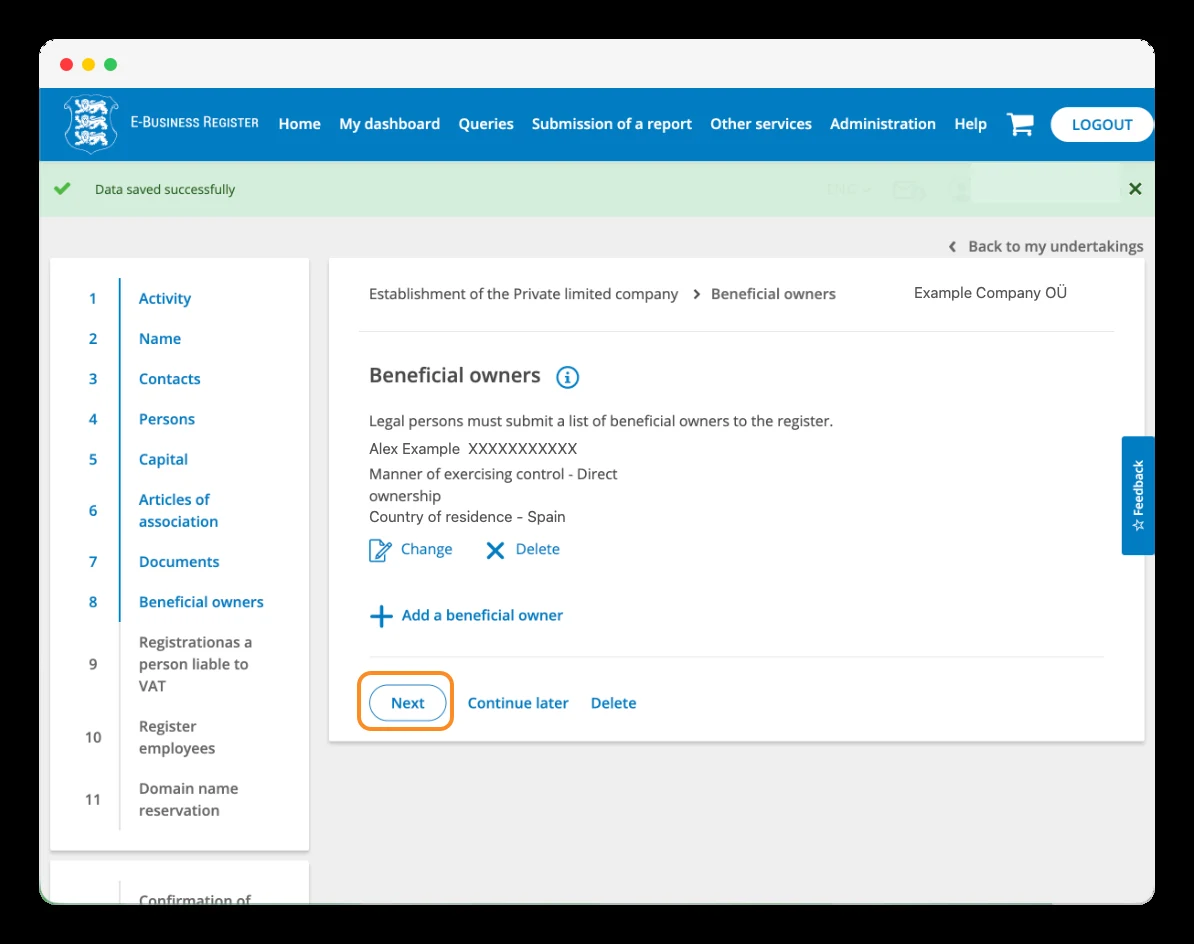
Once the beneficial owner has been added, the portal shows a summary with their name, identification, way of exercising control and country of residence.
Check that the details are correct. The example shows Direct ownership, which means direct ownership: the person holds the shares directly, without another company in between.
If you need to correct something, click «Change». If another beneficial owner is missing, use «Add a beneficial owner». When the information is complete, click «Next».
Step 24
Decide whether to apply for voluntary VAT registration
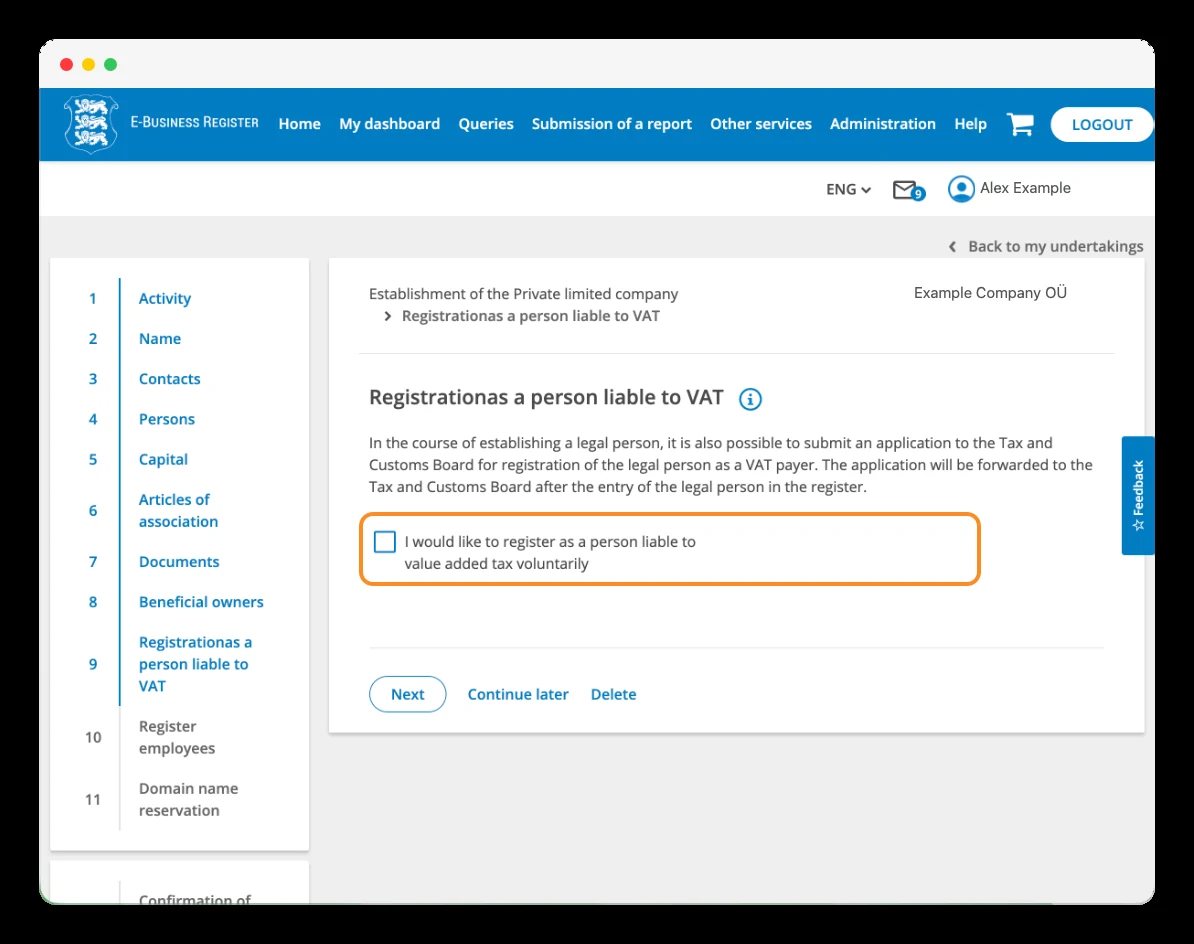
In the «Registration as a person liable to VAT» section, the portal allows you to apply for voluntary VAT registration during the incorporation.
If you want to apply, tick «I would like to register as a person liable to value added tax voluntarily» and complete the information that unfolds. The application will be sent to the Estonian Tax and Customs Board after the company is registered.
Ticking this box doesn't mean automatically obtaining a VAT number: you're submitting an application.
If you've checked that you don't need to apply for registration at this time, leave the box unticked and click «Next».
Step 25
Check whether you need to register employees
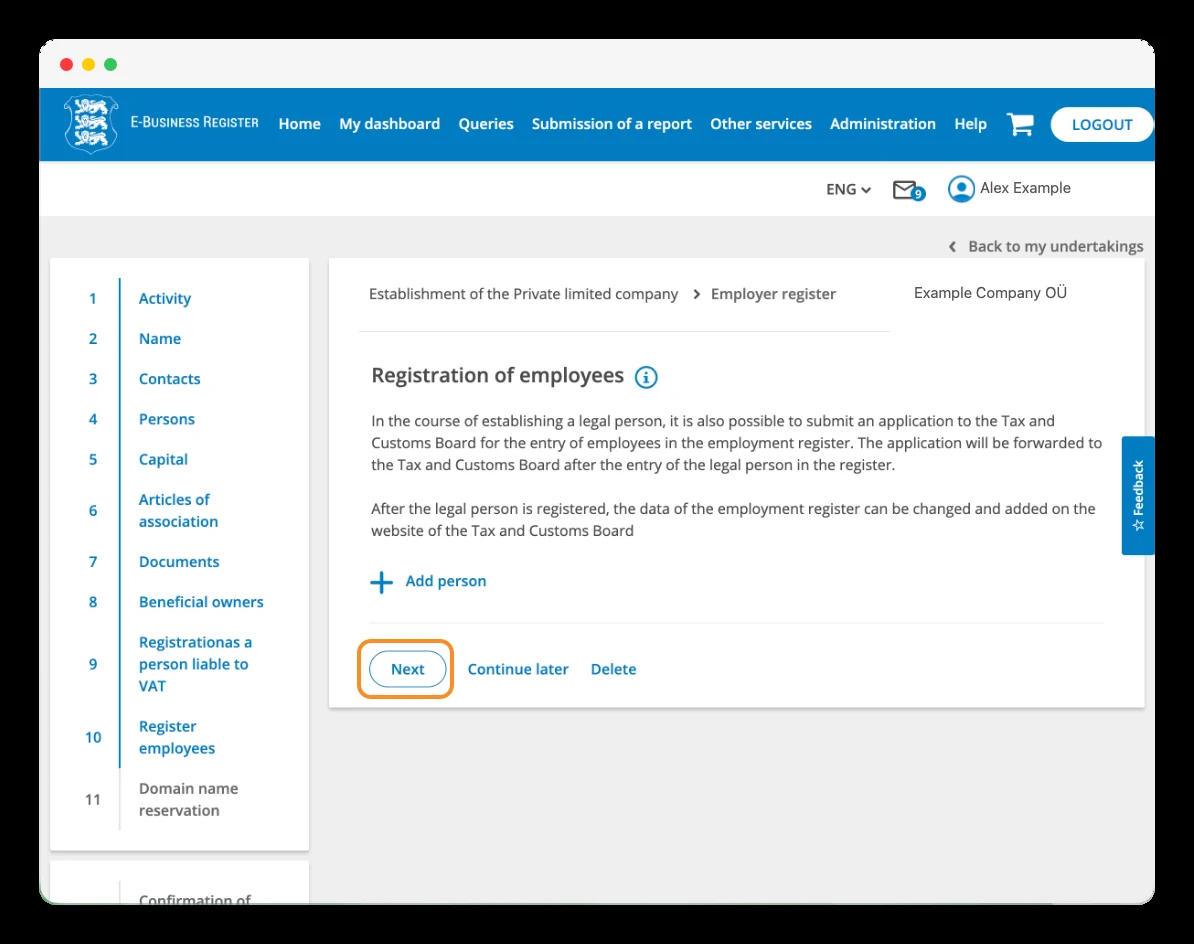
The «Registration of employees» section allows you to submit an application for entry in the employment register during the incorporation. The application will be sent to the Tax and Customs Board after the company is registered.
If you need to register someone from the start, click «Add person» and complete the corresponding details.
If you have no one who needs to be registered at this time, you can continue without adding anyone, by clicking «Next». Later you'll be able to manage registrations and changes from the Estonian Tax and Customs Board.
Step 26
Decide whether you want to reserve a «.ee» domain
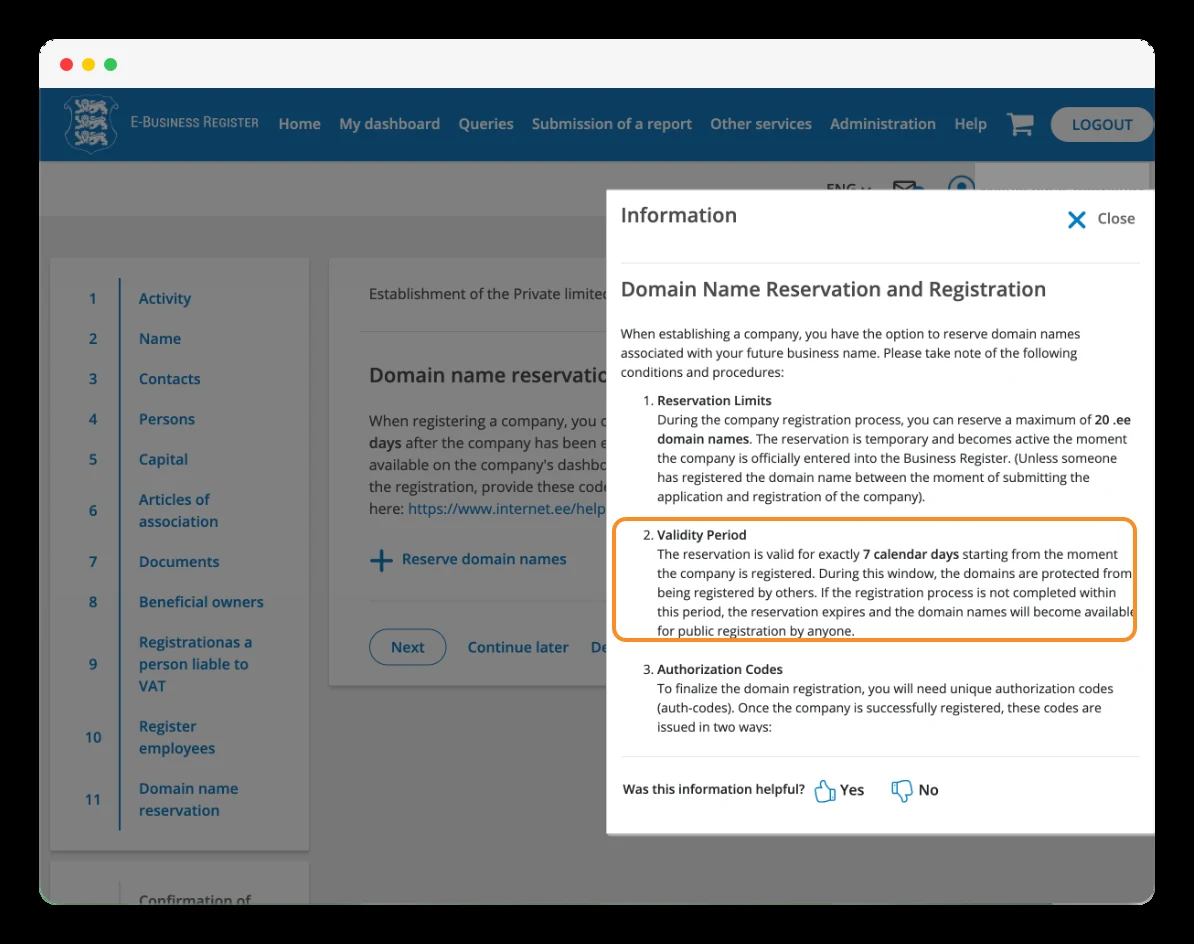
In «Domain name reservation» you can reserve available «.ee» domains for your future company. This step is optional. If you're interested, close the information window and click «Reserve domain names». You can reserve up to 20 domains free of charge.
The reservation protects the domains for seven calendar days from the company's registration. Within that period you'll have to complete their registration with an accredited registrar, using the authorisation codes provided.
The reservation doesn't include the registration or its price. If you don't complete the registration in time, the domains become available again.
If you don't need to reserve any, click «Next».
Step 27
Review the application before signing it
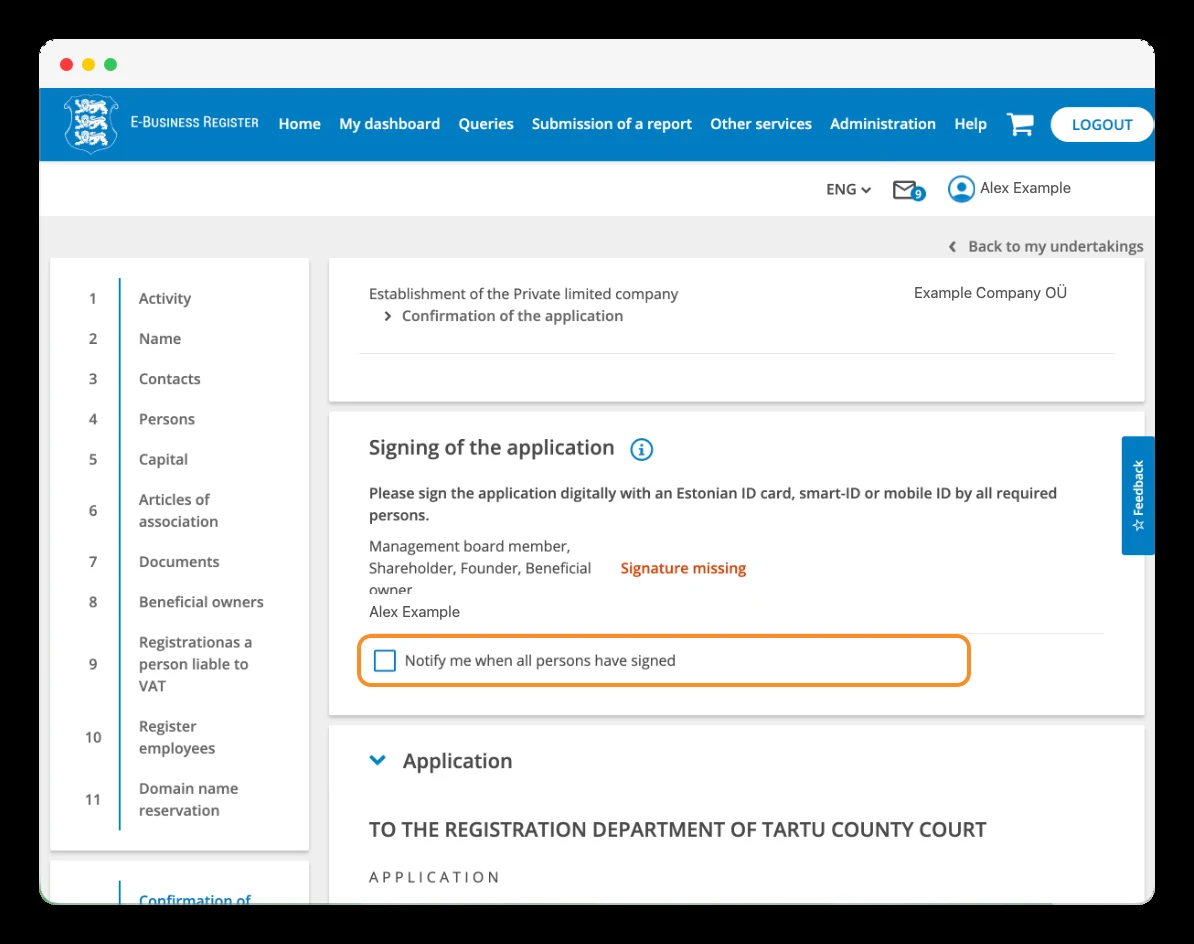
We arrive at «Confirmation of the application». The portal shows who must sign and whether any signature is still missing, through the «Signature missing» notice.
Expand «Application» and review the complete application before starting the digital signature. Check especially the name, the address, the shareholders, the managers, the capital and the articles of association.
You can tick «Notify me when all persons have signed» to receive a notice when all signatures are in. It's useful if several people are involved.
When everything is correct, use the «Sign» option and follow the instructions of the chosen signing method: Estonian ID card —including the e-resident one—, Smart-ID or Mobile-ID.
Step 28
Review the generated documents and start the signature
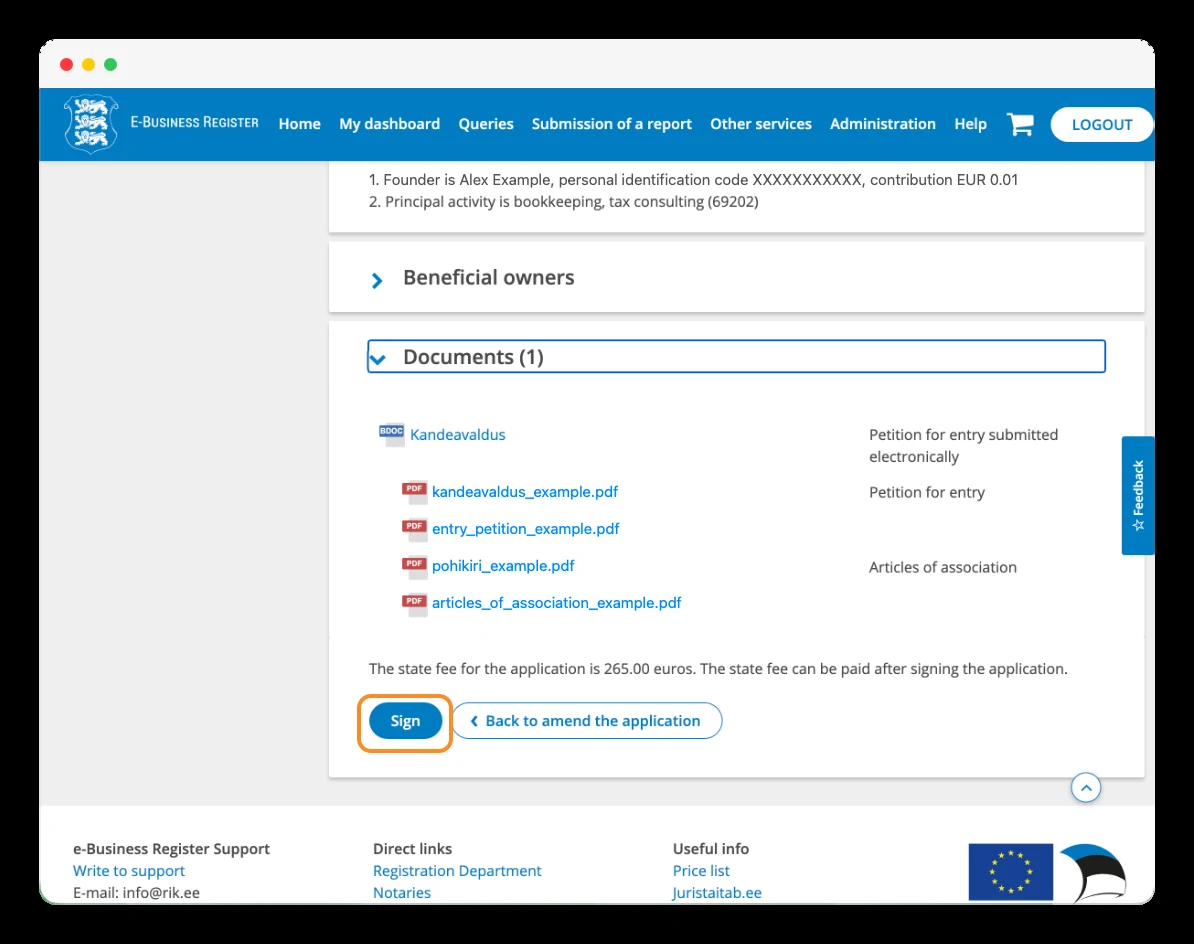
At the bottom of the confirmation you'll find «Documents», with the files the portal has generated from your data, including the registration application and the articles of association.
Open the documents and check that their content is correct. If you need to modify something, click «Back to amend the application» to return to the form.
When you've finished the review, click «Sign» to start the digital signature and follow the instructions that appear.
The screen also reminds you that the 265 € fee is paid after signing the application.
Step 29
Check that the digital signature has been completed
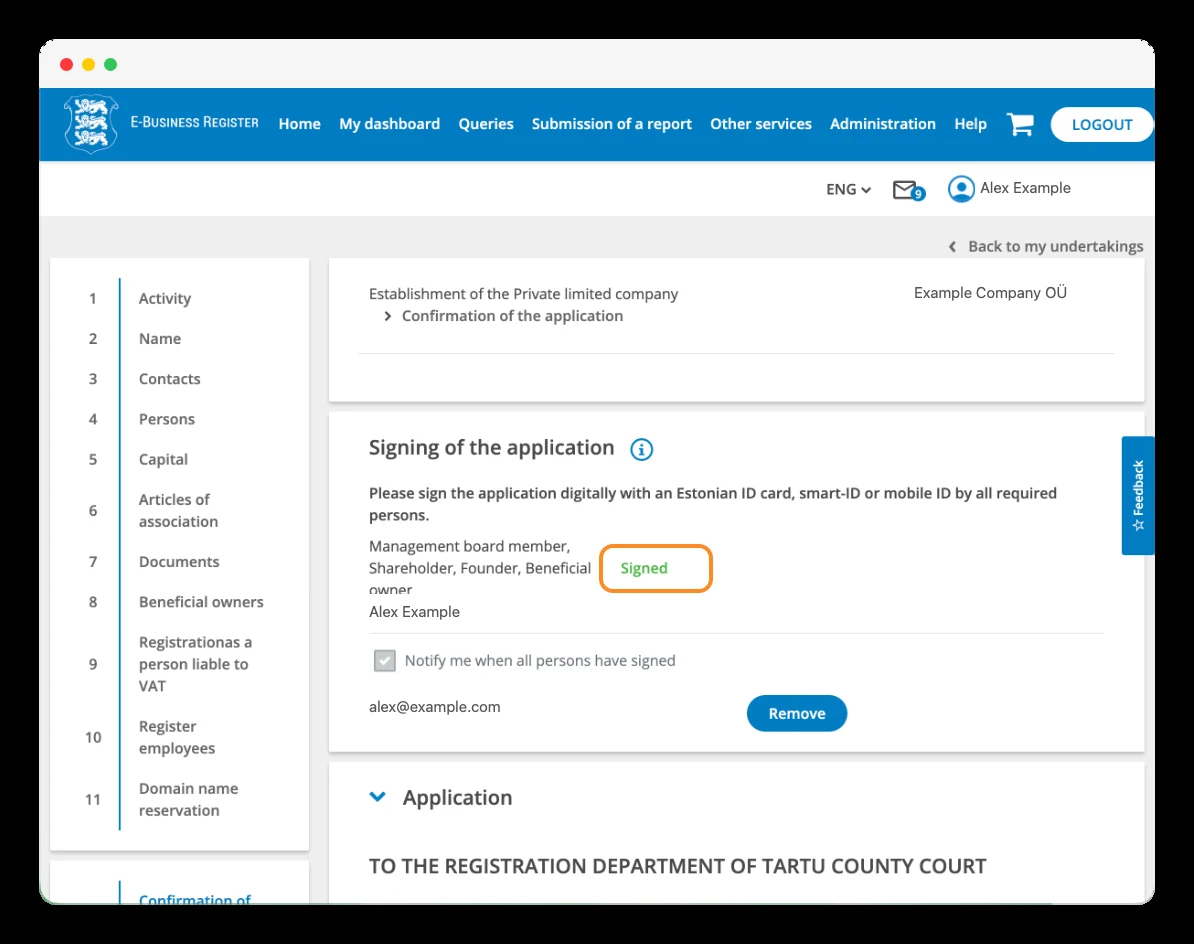
After signing, return to the «Signing of the application» section and check that the status has changed from «Signature missing» to «Signed», in green.
If several people are involved, check that all the required signatures are complete before continuing.
The screenshot also shows the «Notify me when all persons have signed» notice activated, with the email where the notification will be received.
Step 30
Make the share capital contribution
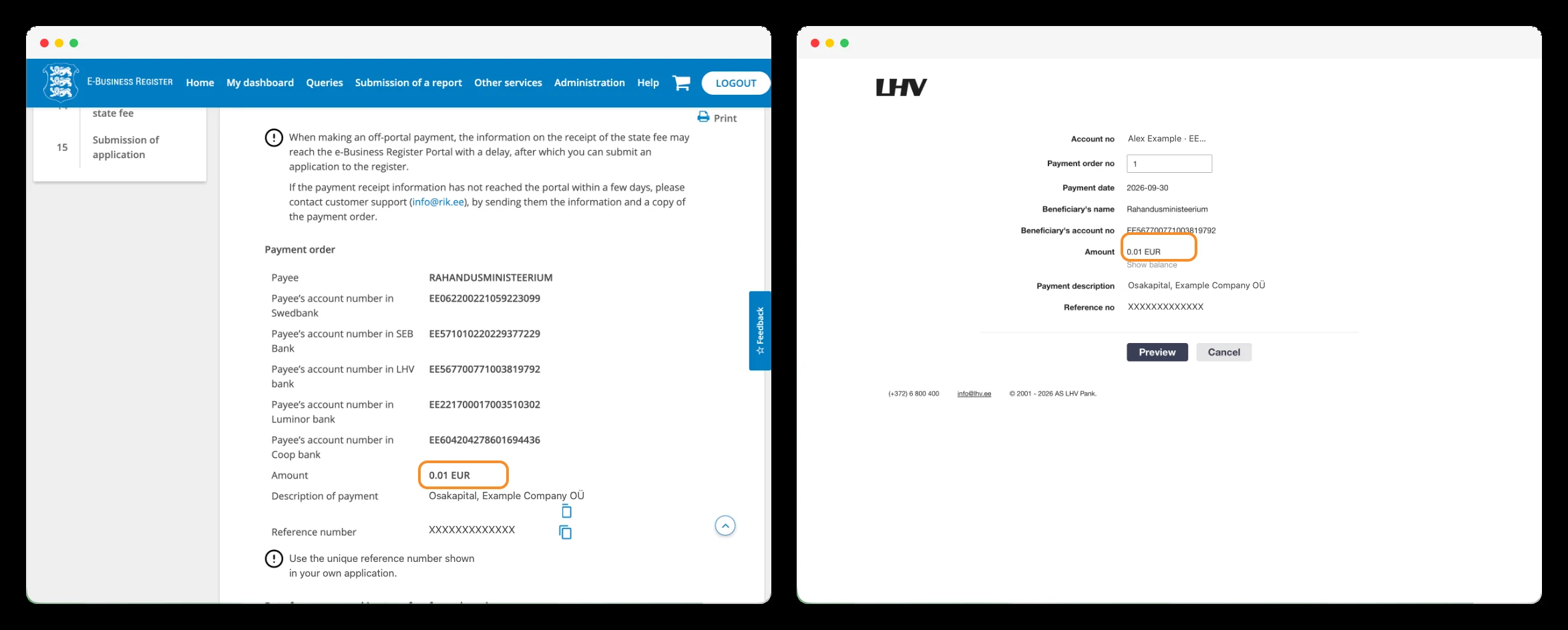
In my case, the portal allowed me to make the payment through a bank link. Since I already had a personal account with LHV, I selected that bank and authorised the payment from my account. If your application offers this option, you can use one of the banks available in the portal. If you don't have an account with any of them, you can make a manual bank transfer with the details shown in the payment order. Check the amount, the beneficiary and, especially, the unique reference of your application, so the register can identify the payment. A transfer made outside the portal may take longer to appear as confirmed.
Step 31
Pay the incorporation fee with your bank or card
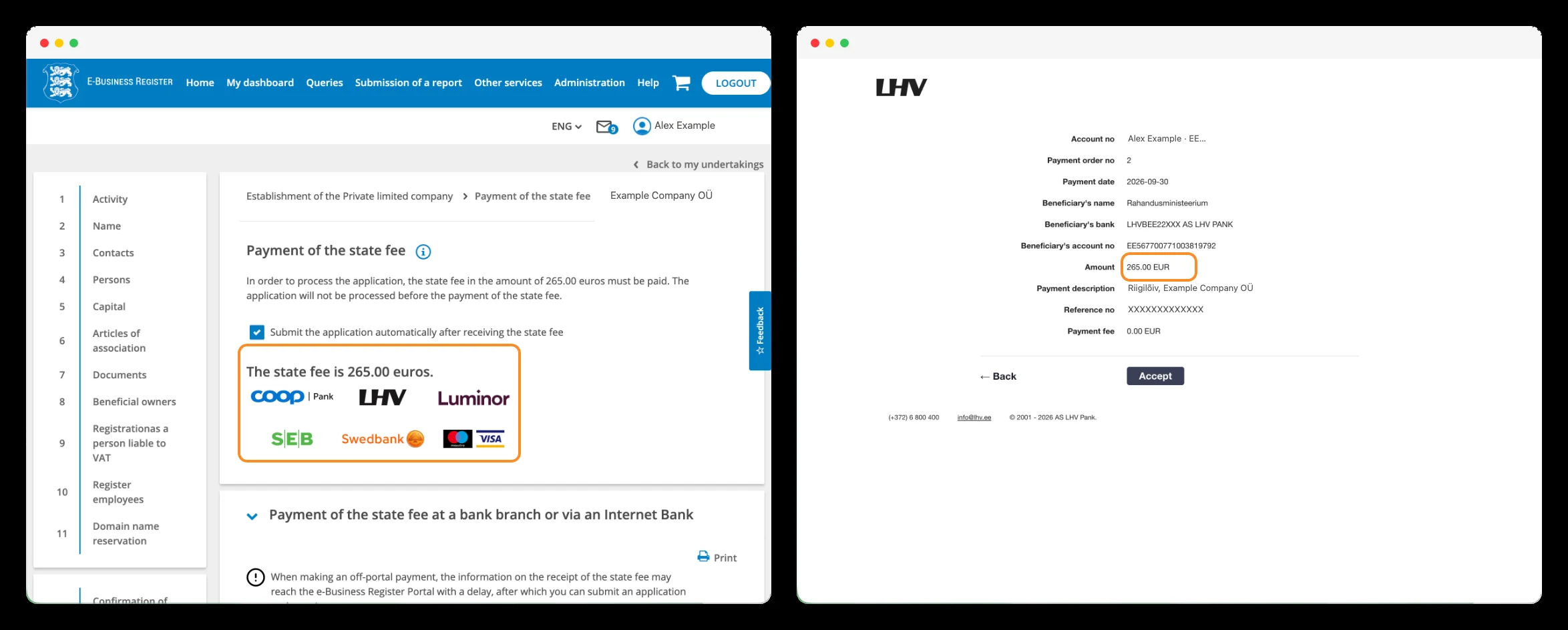
In «Payment of the state fee» you must pay the 265 € fee for the register to process the application. In my case, I selected LHV because I already had a personal account with that bank. The portal directed me to LHV, where I reviewed the payment details and authorised it via «Accept».
If you don't have an account with the banks shown, you can use the card payment option. You can also make a manual transfer with the details and reference provided by your application.
The «Submit the application automatically after receiving the state fee» checkbox allows the application to be sent automatically when the system recognises the payment. Leave it ticked if you've already finished the review and want to submit it.
Step 32
Check that the application has been sent to the register
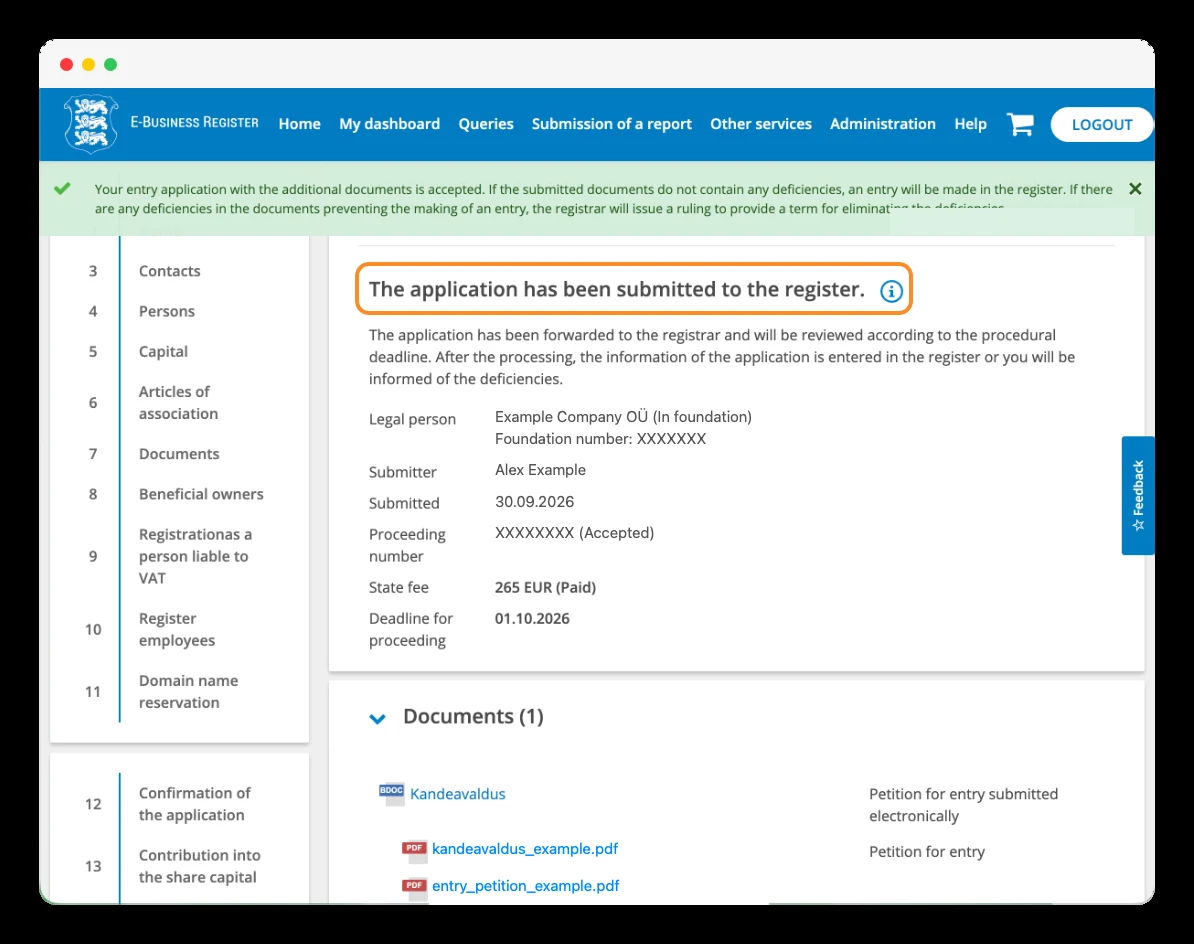
After the payment and the submission, the portal shows «The application has been submitted to the register»: the application has been filed with the register.
On this screen you can check the filing date, the proceeding number, the fee as «Paid» and the expected deadline for its processing.
In my case, the application was filed on 30 September and the portal indicated 1 October as the processing deadline. Always check the date shown in your own file.
Step 33
Leave the e-Financials option unticked
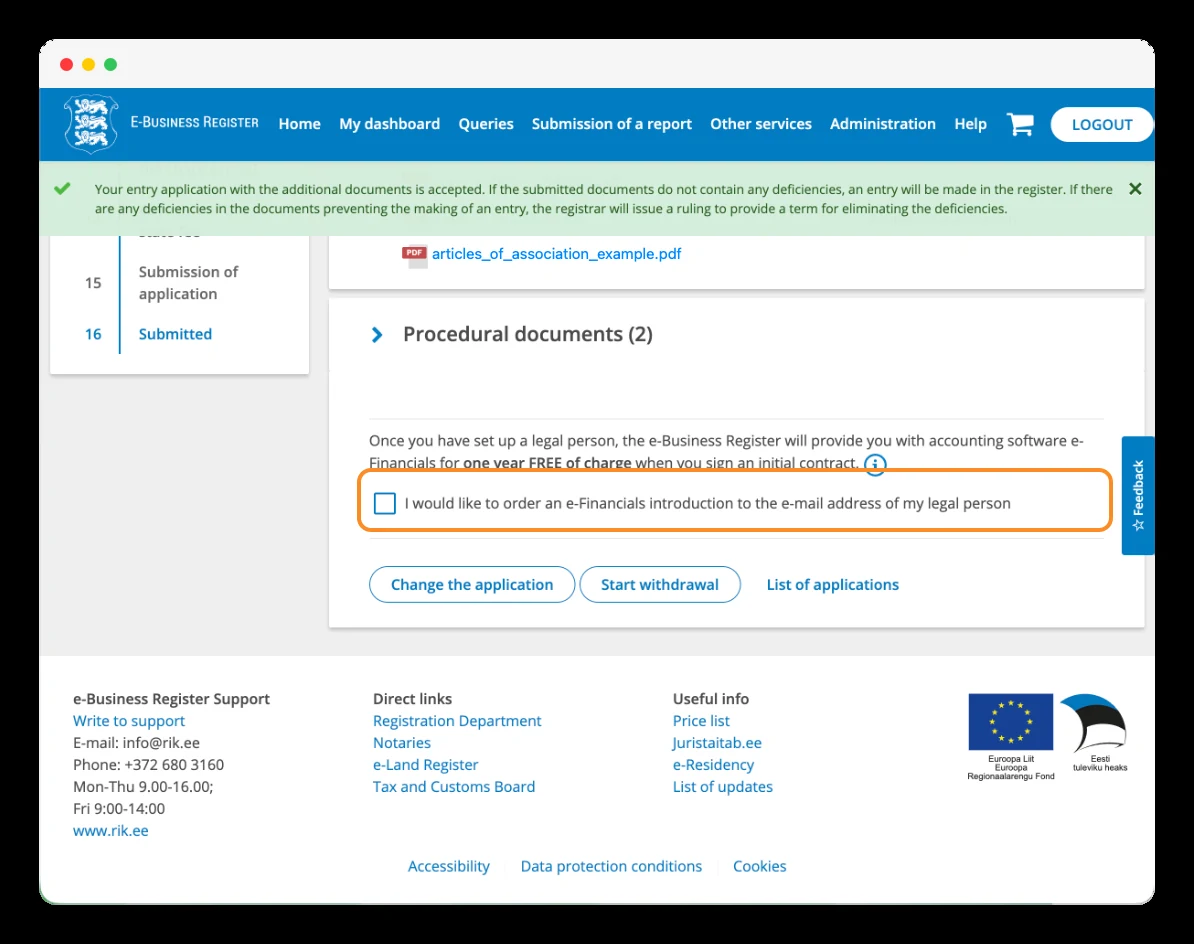
Once the application has been submitted, the portal offers to send you information about e-Financials, RIK's accounting software.
This option is voluntary. My recommendation is to leave the box unticked, as shown in the screenshot. It doesn't affect the processing of your application.
Step 34
Receive your company's registration documents
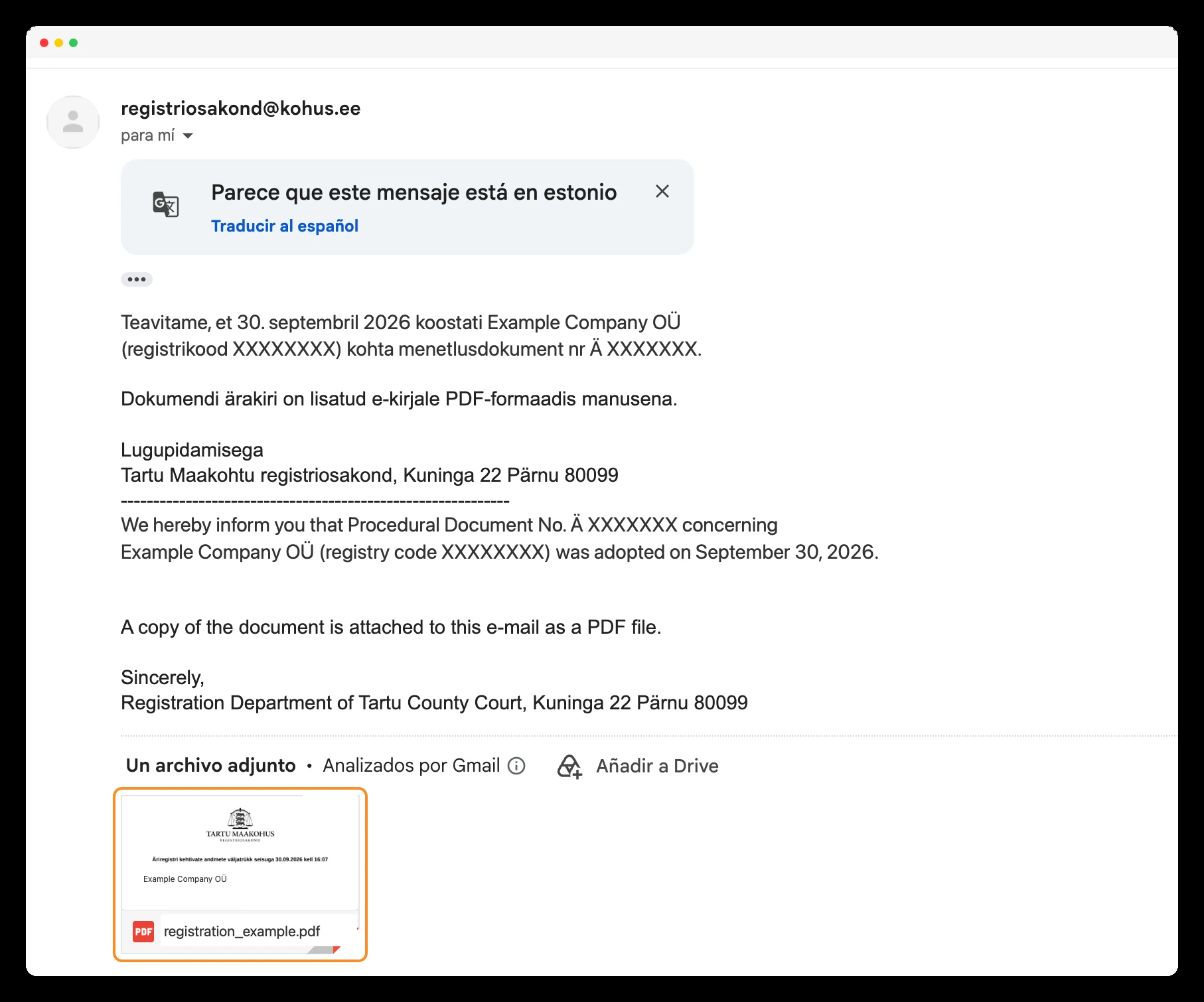
Finally, you'll receive a communication from the Registration Department of Tartu County Court from registriosakond@kohus.ee.
In my case, the email arrived the same day as the submission and included a PDF with the company's registration documents; it took exactly 5 hours and 3 minutes.
Download the file and check the name, the registry code and the registered data. If you can't find the message, also check the junk mail folder.
Starting your company is also deciding how you want to begin
Incorporating a company in Estonia can be fast, but every option has consequences: who can represent it, how rights are distributed among shareholders, what the articles of association establish or how you'll manage VAT.
That's why I recommend that you take part in the process and understand what you're choosing. These are decisions about your business that are worth making with good judgement from the start.
After helping to open more than 1,000 companies in Estonia, I know that having someone with experience can help you avoid mistakes, weigh the alternatives and choose a suitable structure for your project.
If you want to start with a clear picture, book a free meeting with me. We'll talk about your business and the decisions worth reviewing before incorporating it.
About the author
Miguel Piñas Rodriguez
Founder, WorksForYou
Miguel Piñas Rodriguez is the founder of WorksForYou. He has helped establish more than 1,000 companies in Estonia and works daily with international entrepreneurs and the Estonian e-Residency ecosystem.
More about MiguelReady to start your Estonian company?
I'll personally guide you through the process for free.